
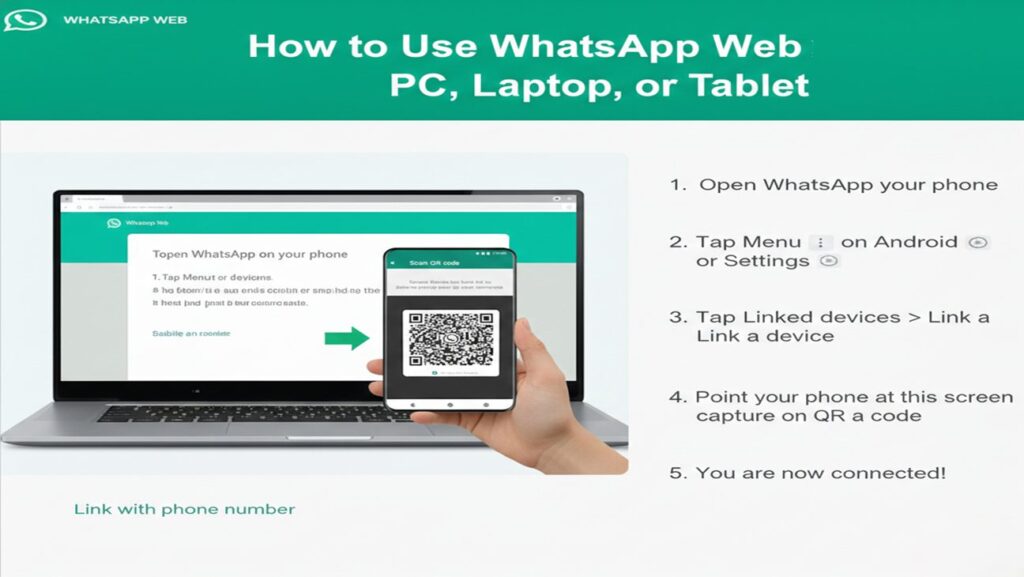
How to Use WhatsApp Web on PC, Laptop, or Tablet
WhatsApp Web allows you to mirror your phone’s conversations to a larger screen. This guide covers setup, advanced features, customization, and troubleshooting.
1. Using WhatsApp Web on PC or Laptop
This is the standard method for any Windows, Mac, or Linux computer.
Prerequisites
- Your phone with the main WhatsApp account logged in.
- A stable internet connection on both your phone and your computer.
- The latest version of Chrome, Firefox, Edge, Safari, or Opera.
Step-by-Step Setup
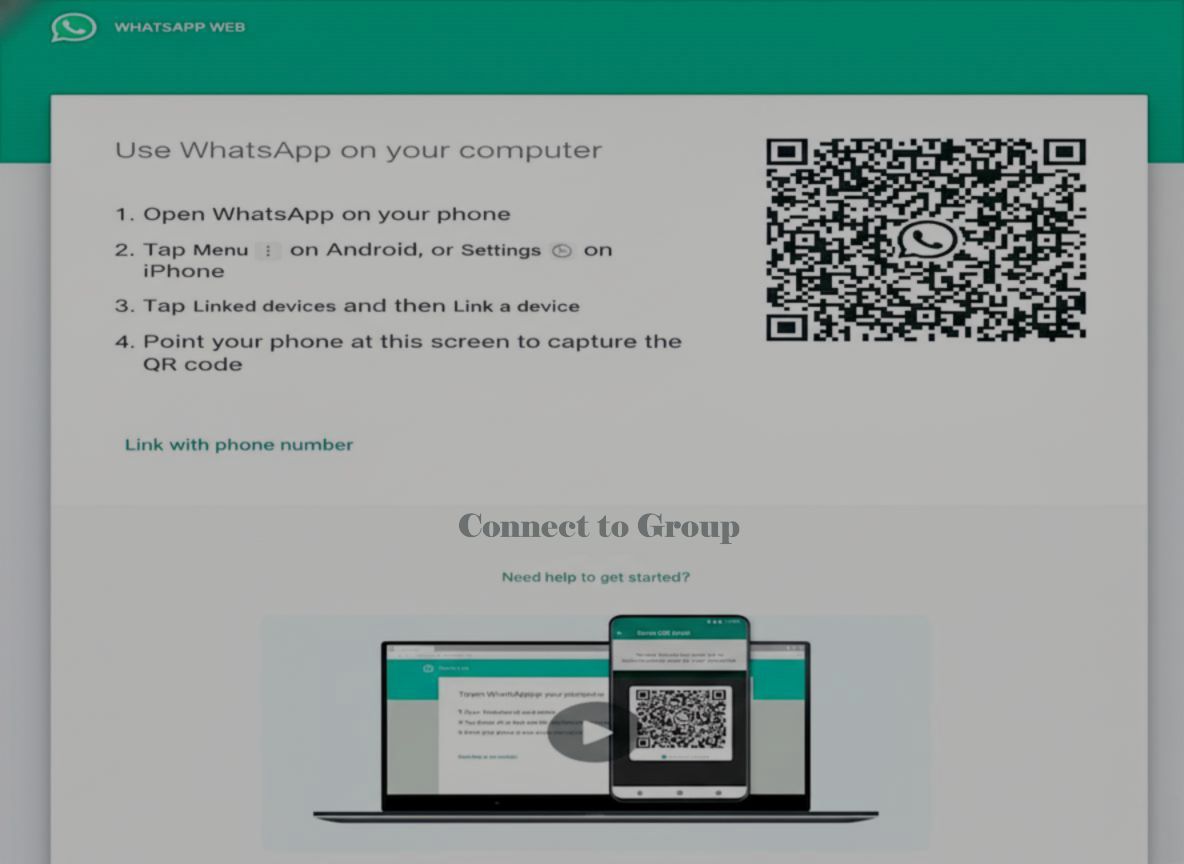
Use WhatsApp on your computer
- Open WhatsApp on your phone
- Tap Menu (⋮) on Android, or Settings (⚙️) on iPhone
- Tap Linked devices and then Link a device
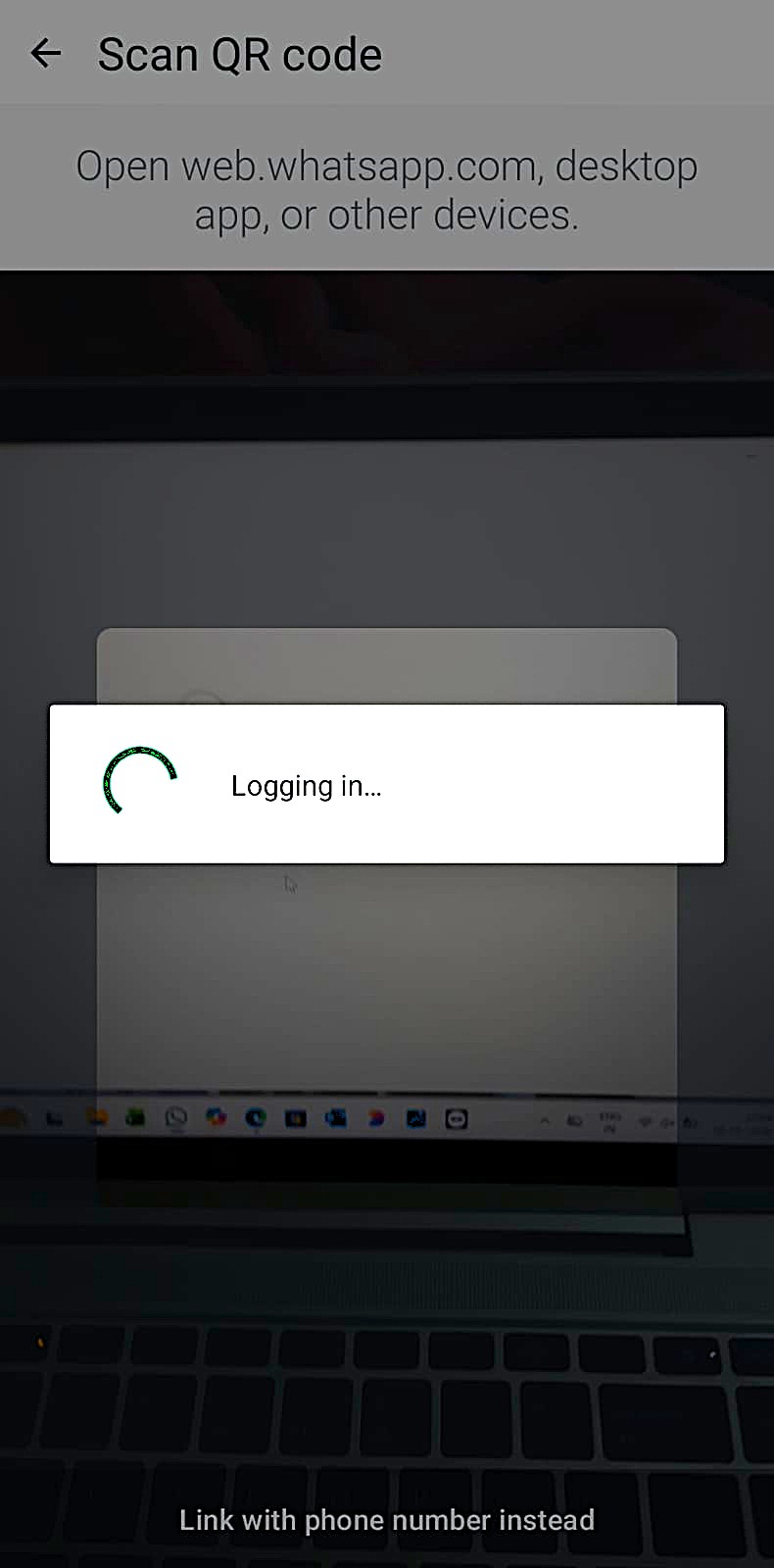
- Point your phone at this screen to capture the QR code
Link with phone number Update
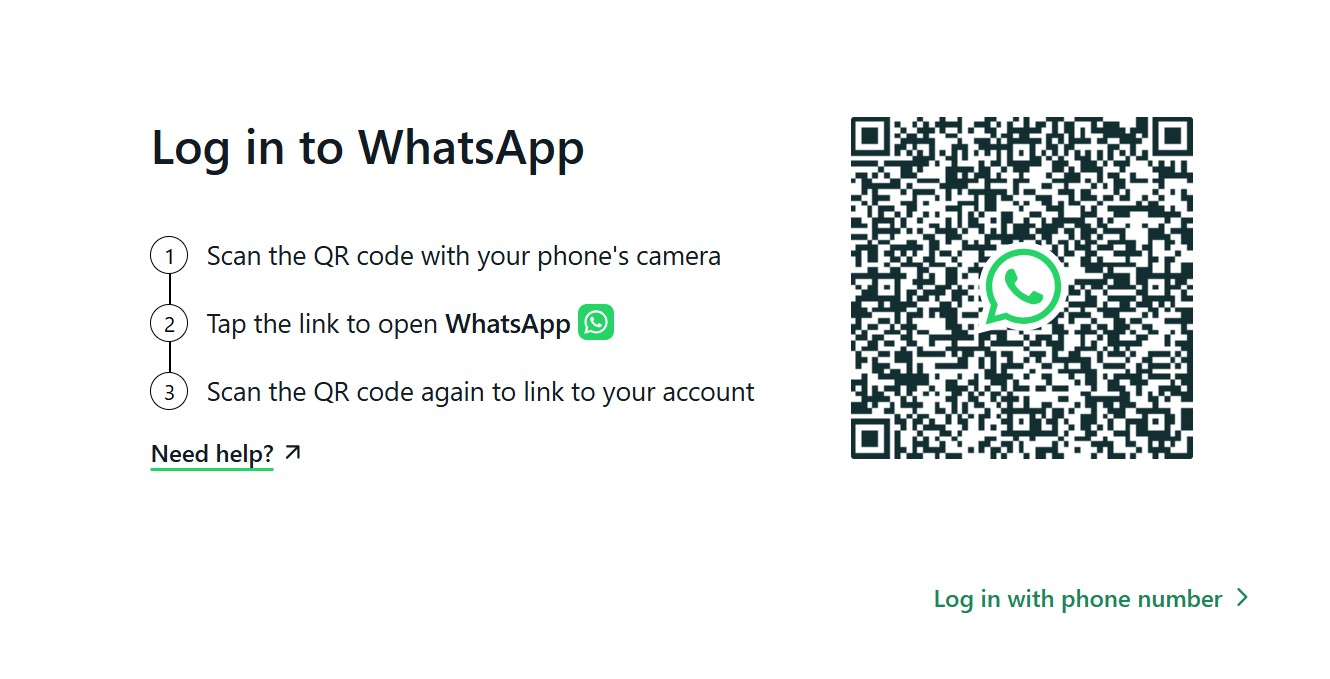
- Open the Browser: On your computer, open your web browser and go to
web.whatsapp.com.Tip: If you are on a public computer, uncheck the “Keep me signed in” box below the QR code to ensure you are logged out when you close the window. - Open WhatsApp on Your Phone:
- Android: Open WhatsApp, tap the three dots (⋮) in the top right corner, and select Linked devices.
- iPhone (iOS): Open WhatsApp, go to Settings (gear icon in the bottom right), and tap Linked Devices.
- Link the Device: Tap the Link a Device button on your phone. You may need to unlock your phone using your FaceID, fingerprint, or PIN.
- Scan the QR Code: Point your phone camera at the QR code displayed on your computer screen. Hold it steady until the code is captured.
Alternative: Link with Phone Number New
If your camera cannot scan the QR code, use this visual alternative:
- Click “Link with phone number” on the web screen.
- Enter your phone number and wait for an 8-character code.
- On your phone, a notification will appear asking to enter the code to link.
Success: Your messages will sync, and the interface will load.
2. Using WhatsApp Web on a Tablet (iPad or Android)
By default, if you visit web.whatsapp.com on a mobile or tablet browser, you are often redirected to the WhatsApp home page or the App Store. You must use the “Desktop Site” feature to bypass this.
For iPad (Safari)
- Open Safari and type
web.whatsapp.com. - If you see the generic WhatsApp home page instead of a QR code:
- Tap the “Aa” icon on the left side of the address bar.
- Select Request Desktop Website from the menu.
- The page will reload and display the QR code. Scan this code with your phone (Settings > Linked Devices) just like you would on a PC.
For Android Tablets (Chrome)
Note: Newer Android tablets may support the native WhatsApp app, but for the Web version:
- Open Chrome and go to
web.whatsapp.com. - If redirected to the main site:
- Tap the three dots (⋮) in the top right corner of the browser.
- Check the box for Desktop site.
- The page will reload with the QR code interface. Scan the code using your primary phone (Menu > Linked Devices).
3. Customizing Your Experience
Enable Dark Mode
If the bright white interface is too harsh, you can easily switch to Dark Mode.
- Click the three vertical dots (⋮) above your chat list (next to your profile picture).
- Select Settings.
- Click on Theme.
- Select Dark and click OK.
Change Chat Wallpaper
Go to Settings (via the three dots) > Chat Wallpaper. Choose a background color from the preset options. Note: On WhatsApp Web, you currently cannot upload custom images as wallpaper.
4. Advanced Features & Tips
Meta AI Integration Update 2026
WhatsApp Web now features a built-in AI assistant for research and image generation.
- Click the Meta AI icon (colorful circle) to start a chat.
- Type
/imagineto generate AI images directly in your chats. - Use the AI to summarize long group conversations.
Message Editing New
You can now correct typos within 15 minutes of sending a message:
- Right-click the message bubble.
- Select Edit from the menu.
- Adjust your text and send again. (The message will be marked as “Edited”).
Text Formatting Tricks
You can format your messages using special symbols:
- Bold: Place asterisks around text ->
*Hello*becomes Hello - Italic: Place underscores around text ->
_Hello_becomes Hello - Strikethrough: Place tildes around text ->
~Hello~becomesHello - Monospace: Place three backticks ->
```Hello```becomesHello - Bulleted List: Start a line with
*or-followed by a space. - Numbered List: Start a line with
1.followed by a space. - Quote: Start a line with
>followed by a space. - Inline Code: Surround text with single backticks ->
`code`.
Expanded Keyboard Shortcuts
(Shortcuts may vary slightly based on OS and browser)
| Action | Windows | Mac |
|---|---|---|
| New Chat | Ctrl + Alt + N | Cmd + Ctrl + N |
| Next Chat | Ctrl + Alt + Tab | Cmd + Ctrl + Tab |
| Search | Ctrl + Alt + / | Cmd + Ctrl + / |
| Archive Chat | Ctrl + Alt + Shift + E | Cmd + Ctrl + E |
| Mute Chat | Ctrl + Alt + Shift + M | Cmd + Ctrl + M |
| Settings | Ctrl + Alt + , | Cmd + Ctrl + , |
| Profile | Ctrl + Alt + P | Cmd + Ctrl + P |
Notifications
To ensure you never miss a message:
- When you first log in, a blue banner often appears asking to Turn on desktop notifications. Click it.
- If missed, click the Lock icon in your browser’s address bar.
- Toggle “Notifications” to Allow.
5. WhatsApp Web vs. WhatsApp Desktop App
Should you use the browser version or download the app?
| Feature | WhatsApp Web (Browser) | WhatsApp Desktop (App) |
|---|---|---|
| Installation | No install needed; instant access. | Must download and install (~150MB). |
| Calls | Voice/Video calls are limited/unavailable. | Full support for Voice and Video calls. |
| Performance | Depends on browser speed/tabs. | Generally faster and smoother. |
| Notifications | Browser notifications (must stay open). | Native system notifications (reliable). |
| Offline Use | Requires browser to be open. | Can run in background more reliably. |
6. Security & Troubleshooting
How to Log Out
It is crucial to log out if you are not using your personal device.
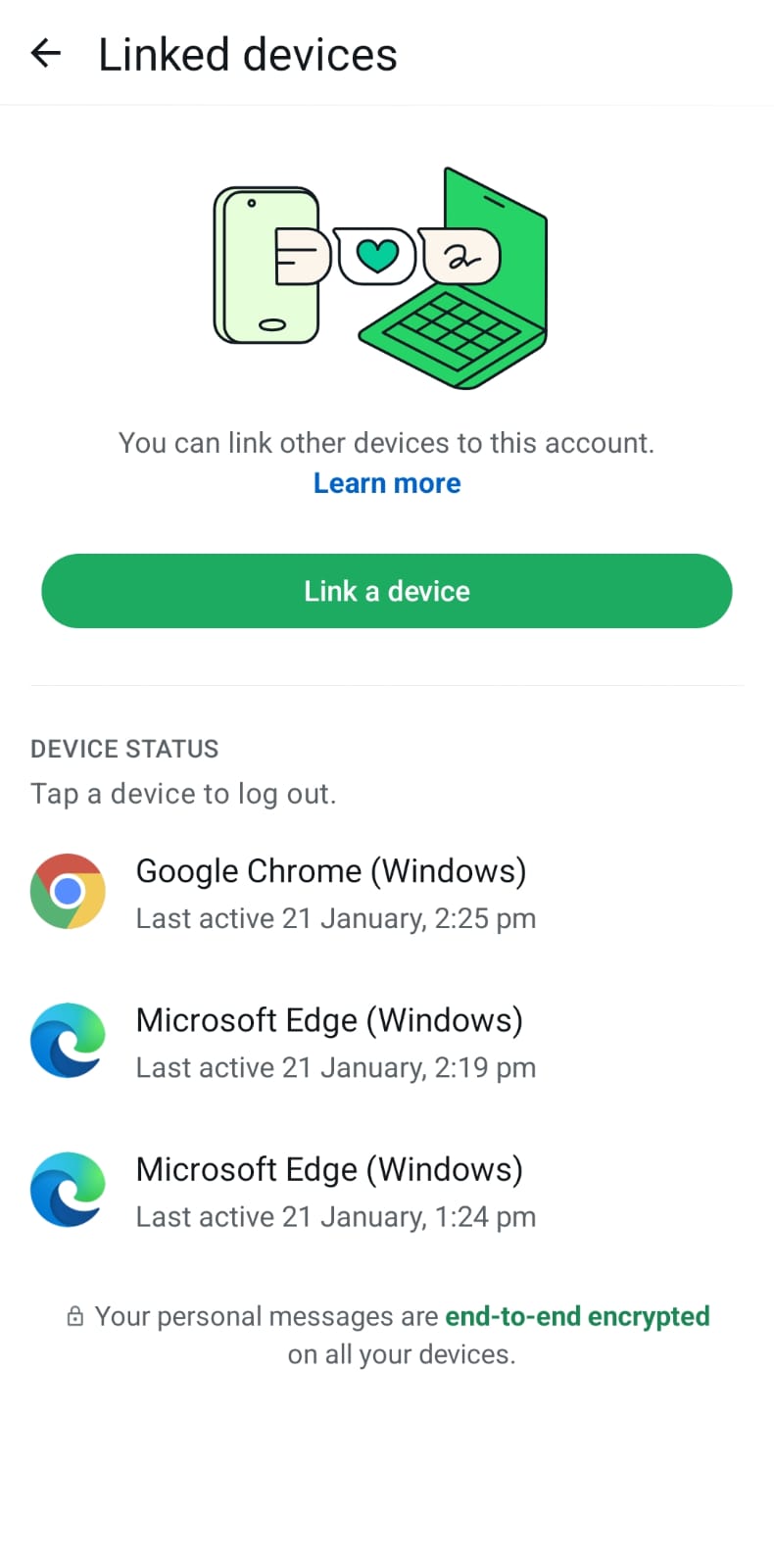
- From the Computer/Tablet: Click the three dots (Menu) above your chat list and select Log out.
- Remotely (If you forgot):
- Open WhatsApp on your phone.
- Go to Linked Devices.
- Tap the device listed (e.g., “Google Chrome (Windows)”).
- Tap Log Out.
Common Issues
- “Phone Not Connected” Error: While the new multi-device feature allows your phone to be offline for up to 14 days, connecting your phone occasionally ensures messages sync faster.
- QR Code Won’t Load: Refresh the page (F5 or Ctrl+R) or check if your network blocks WhatsApp.
- Camera Won’t Scan: Increase monitor brightness and ensure your phone camera lens is clean.