
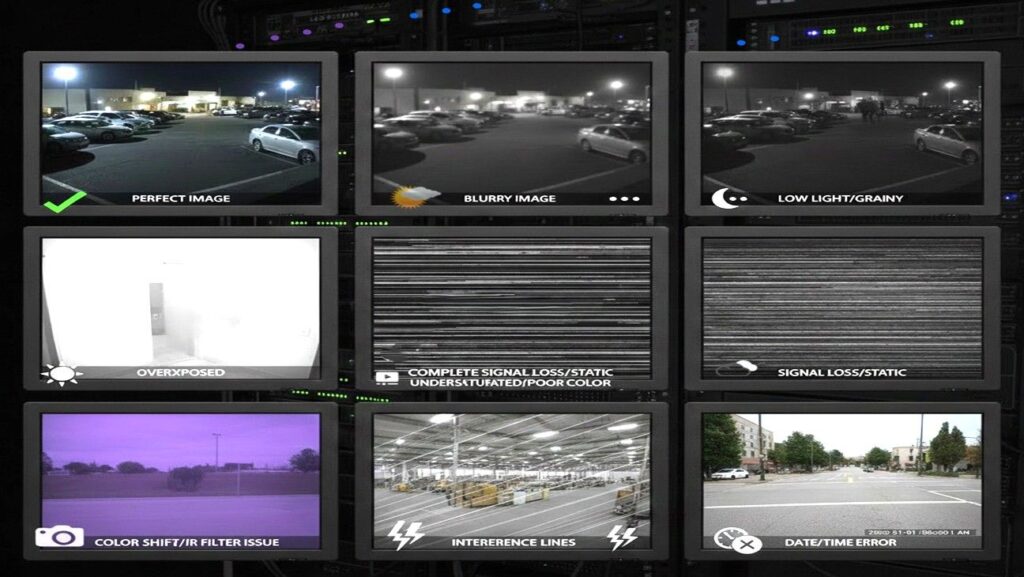
🛡️ Professional CCTV Troubleshooting & Maintenance Guide
Comprehensive technical resource covering physical installation failures, networking, software logic, and advanced thermal sensor diagnostics.
1. Power & Physical Connectivity
| Issue | Diagnostic Steps | Professional Solution |
|---|---|---|
| Total Video Loss | Check IR LEDs at night (do they glow red?). | If no red glow, the camera has no power. Test with a PoE Injector or a separate 12V DC power supply to rule out the switch. |
| Camera Not Powering On | Verify the power source and connector integrity. | Use the correct voltage/amperage adapter. Test with a new power supply. Check the PoE port status on the switch/NVR. |
| Camera Keeps Disconnecting | Check cable crimping and power stability. | Avoid using cheap, unmanaged PoE switches. Ensure cable runs don’t exceed 100m. Replace intermittent power adapters. |
| PoE Budget Exceeded | Check NVR/Switch PoE status page. | PTZ and Varifocal cameras draw more power (15W-30W) during movement or IR activation. Ensure the switch handles Peak Load. |
2. Image Quality & Optical Issues
| Issue | Cause | Solution |
|---|---|---|
| Poor Image Quality | Resolution mismatch or dirty optics. | Set proper resolution in NVR settings. Clean the lens with microfiber. Avoid direct light hitting the lens (Backlight Compensation). |
| Night Vision Not Working | IR reflection or physical obstruction. | Remove the plastic protective cover. Move camera away from walls to avoid IR bounce-back. Never place a camera behind glass. |
| Horizontal Rolling Lines | Ground Loop Interference. | Electrical leakage in video cables. Use a BNC Ground Loop Isolator. Avoid mounting cameras directly onto metal surfaces. |
| Internal Condensation | Seal failure or temperature shock. | Replace the Desiccant Bag inside the housing. Ensure the cable gland/drip loop faces downwards. |
3. Networking & Cloud Access (Hik-Connect / IP)
| Issue | Diagnostic Steps | Professional Solution |
|---|---|---|
| IP Camera Missing on NVR | Check IP range and camera status. | Confirm IP is in the same range. Activate the camera (set password). Add manually using the correct IP and admin password. |
| Cloud Offline (Hik-Connect) | Check gateway and DNS settings. | Set DNS to $8.8.8.8$ or $8.8.4.4$. Enable Platform Access in NVR settings. Restart the NVR and check the router’s firewall. |
| Network Abnormal / No Resource | Bandwidth or conflict issues. | Check cables. Assign a unique Static IP to every camera. Avoid using Wi-Fi for fixed security cameras; use hardwired Ethernet. |
| Remote View Not Working | App or account permissions. | Check app login status. Enable Hik-Connect in NVR. If using Team Mode, ensure the device has been shared with the correct permissions. |
4. Storage & Logic (Recording/Motion)
| Issue | Diagnostic Steps | Professional Solution |
|---|---|---|
| No Playback / Missing Footage | HDD status and time settings. | Check or replace the HDD. Ensure it is Initialized. Correct the date/time settings; footage is often “lost” due to time desynchronization. |
| HDD “Uninitialized” | Disk is visible but not recording. | Format the drive via Storage Management. Replace with a Surveillance-Grade Drive (e.g., WD Purple/Skyhawk) if it fails to initialize. |
| Motion Detection Issues | Sensitivity or area configuration. | Increase sensitivity. Select a specific Motion Detection Area. Filter out trees/shadows to avoid false triggers. Set a recording schedule. |
| Missing Footage Gaps | Schedule vs. NTP Sync. | Enable NTP (Network Time Protocol) to sync with $time.google.com$. Ensure the “Record Schedule” covers 24/7 or the desired motion windows. |
5. Specialized: Night Vision & Thermal Troubleshooting
| Issue | Diagnostic Steps | Professional Solution |
|---|---|---|
| Thermal Image Frozen/Blank | Check the sensor shutter sound. | Listen for a periodic “click” (FFC – Flat Field Correction). If no click, the shutter is stuck. Reboot the camera or trigger manual FFC from the web UI. |
| Thermal Temperature Inaccuracy | Environmental heat interference. | Ensure the camera is calibrated for the specific environment. Keep heat sources (motors/exhaust) out of the measurement zone. |
| IR Overexposure (Whiteout) | Subject is too close to the camera. | Enable Smart IR in the OSD menu. If the IR is too powerful for small rooms, reduce the “IR Power” or “Gain Control” manually. |
| Foggy Night Vision | Light leakage or dust buildup. | Ensure the rubber ring around the lens is tight against the glass. Even a tiny gap allows IR light to bleed directly into the lens (Halo effect). |
6. Application & Status Troubleshooting (App Sync)
| Issue | Diagnostic Steps | Professional Solution |
|---|---|---|
| One Camera Missing on App | Works on NVR but not on phone. | Verify if the camera is added to the Main Stream only. Check the “User Management” on the NVR to ensure that specific user has “Remote Live View” permissions for that camera. |
| Status Stuck on “Connecting” | App shows spinning wheel for one cam. | Lower the Sub-stream bit rate and resolution (640 \times 480 or lower). High bitrates often fail to load on mobile networks. |
| Device Not Linked to Account | Error “Device added by another user.” | Use the “Unbind” feature on the device local UI or contact the administrator to release the Serial Number from the old account. |
7. Advanced Mechanics, Audio & Logic Updates
| Issue | Diagnostic Steps | Professional Solution |
|---|---|---|
| Full-Color Night Failure | White LED light not activating. | Ensure “Supplement Light” is set to “Auto” or “Scheduled.” If the area has too much ambient light, the sensor won’t trigger the LEDs. |
| PTZ Drift / Sticky Movement | Presets are “off” or jerky. | Calibrate PTZ via web interface. Check for physical debris in gears. Lubricate external moving parts with silicone-based grease if necessary. |
| VCA / Smart Event Misses | Intrusion or Line Crossing not alerting. | Check the Min/Max Object Size filter. If the subject is too small or too large for the defined parameters, the alarm will not trigger. |
| NVR Fan Noise / Overheating | Loud buzzing from NVR casing. | Clean dust from the NVR fan. Ensure the NVR is in a ventilated rack. High temperatures cause HDD failure and system lag. |
| Audio Buzzing / Hum | Check proximity to AC lines. | Keep microphone cables away from high-voltage wires. Use Shielded Audio Cables. Ensure audio gain is not set to max. |
✅ Final Checklist
Online Status: Confirm all cameras are showing “Online” in the NVR/App.
Recording Verification: Manually playback 1 minute of footage from each camera to ensure the HDD is writing correctly.
Remote Access: Turn off phone Wi-Fi and test viewing via mobile data (4G/5G).
Alerts: Walk in front of cameras to verify motion push notifications are received.
PTZ Return: Ensure PTZ cameras return to “Home” position after use.
🕒 Maintenance
Monthly Physical Maintenance
• Lens Cleaning: Clear dust, smudges, and spider webs (the #1 cause of false alerts).
• Cabling: Inspect outdoor junctions for corrosion or UV damage to jackets.
• UPS/Battery: Unplug the main power for 5 minutes to ensure the battery backup holds.
Quarterly System Audit
• Firmware: Check for security patches from the manufacturer.
• Focus Check: Verify night-time focus (cameras can “soften” focus when the IR filter switches).
• Storage Health: Check HDD S.M.A.R.T. logs for any signs of imminent failure.
Annual System Deep-Check
Full cabling continuity test, waterproof seal replacement, and NVR internal dusting.