TechSkills of Future

HPE SYSTEM UTILITIES: Configuration and Deployment

HPE-SYSTEM-UTILITIES-Configuration-and-Deployment.jpg
HPE SYSTEM UTILITIES: Configuration and Deployment
01 / HPE SYSTEM UTILITIES – QUICK OVERVIEW
https://tecxskill.com/hpe-system-utilities-configuration-and-deployment/

.

What are you looking at on the Server, and what do you want to do?

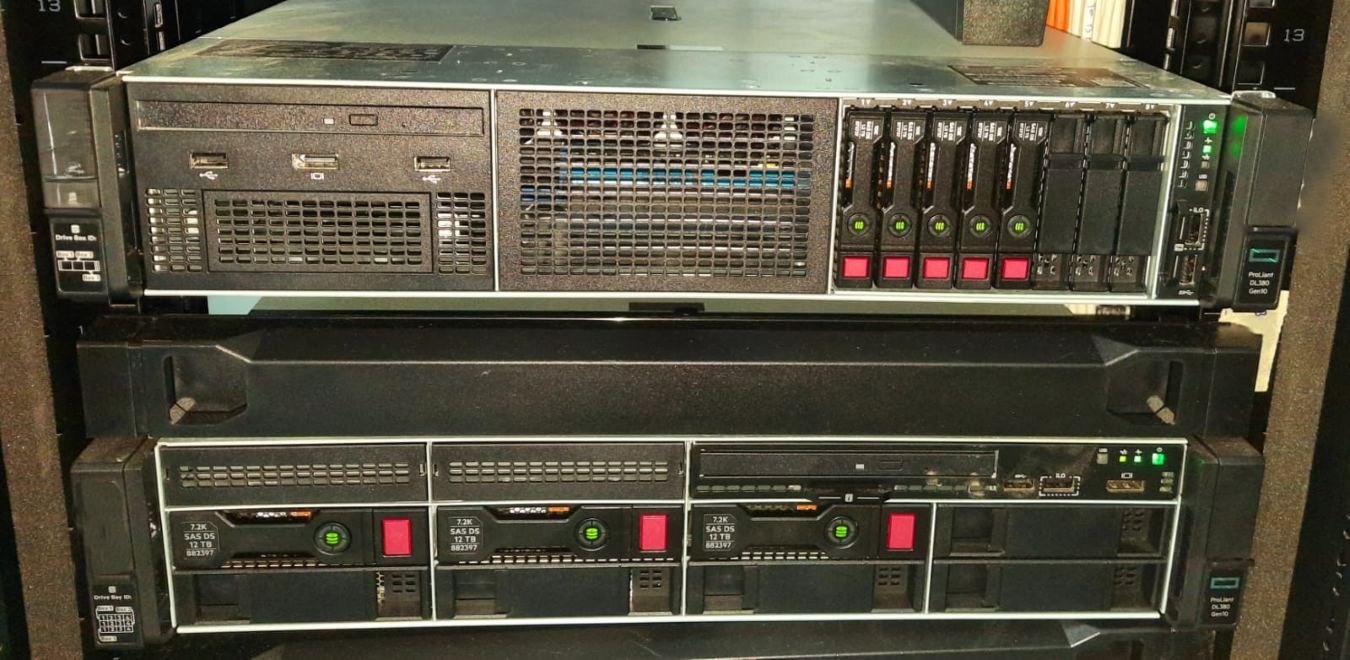
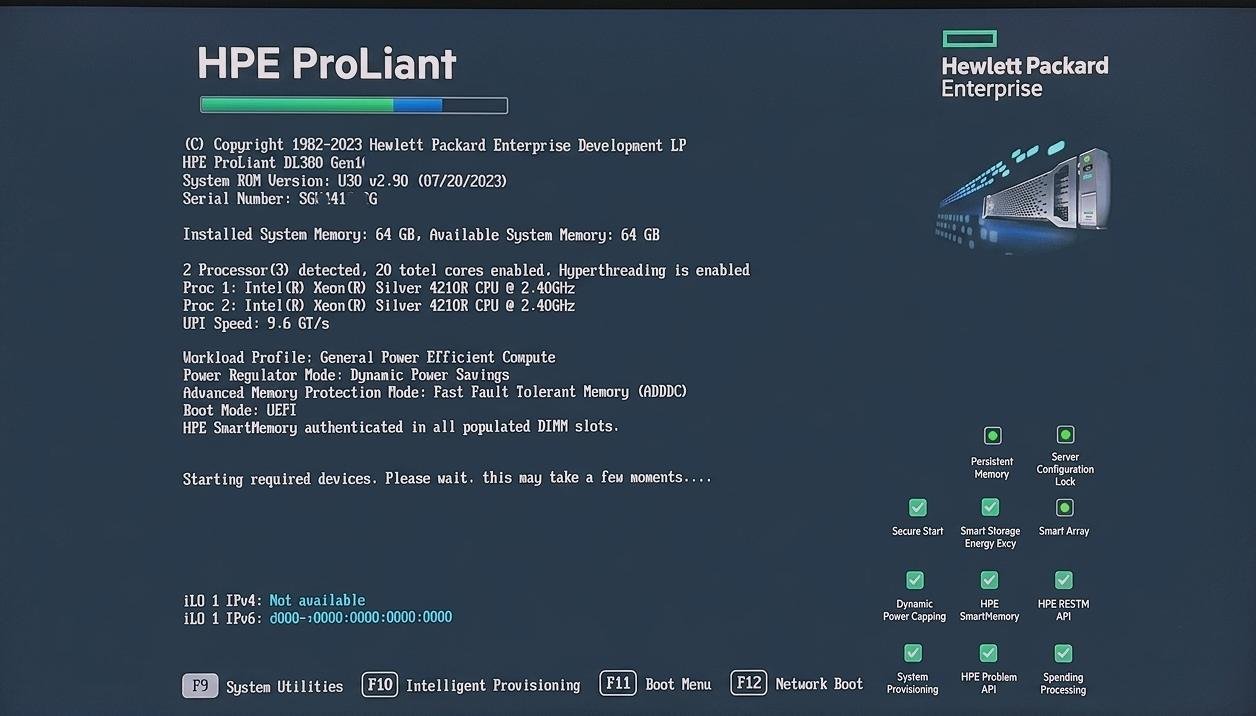
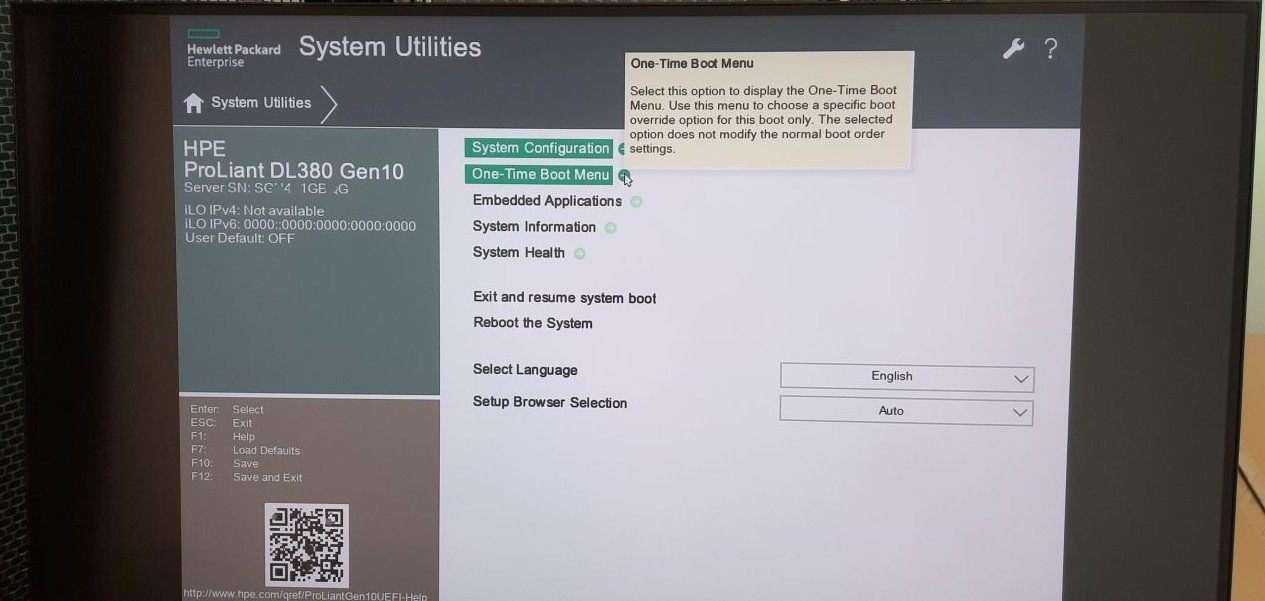
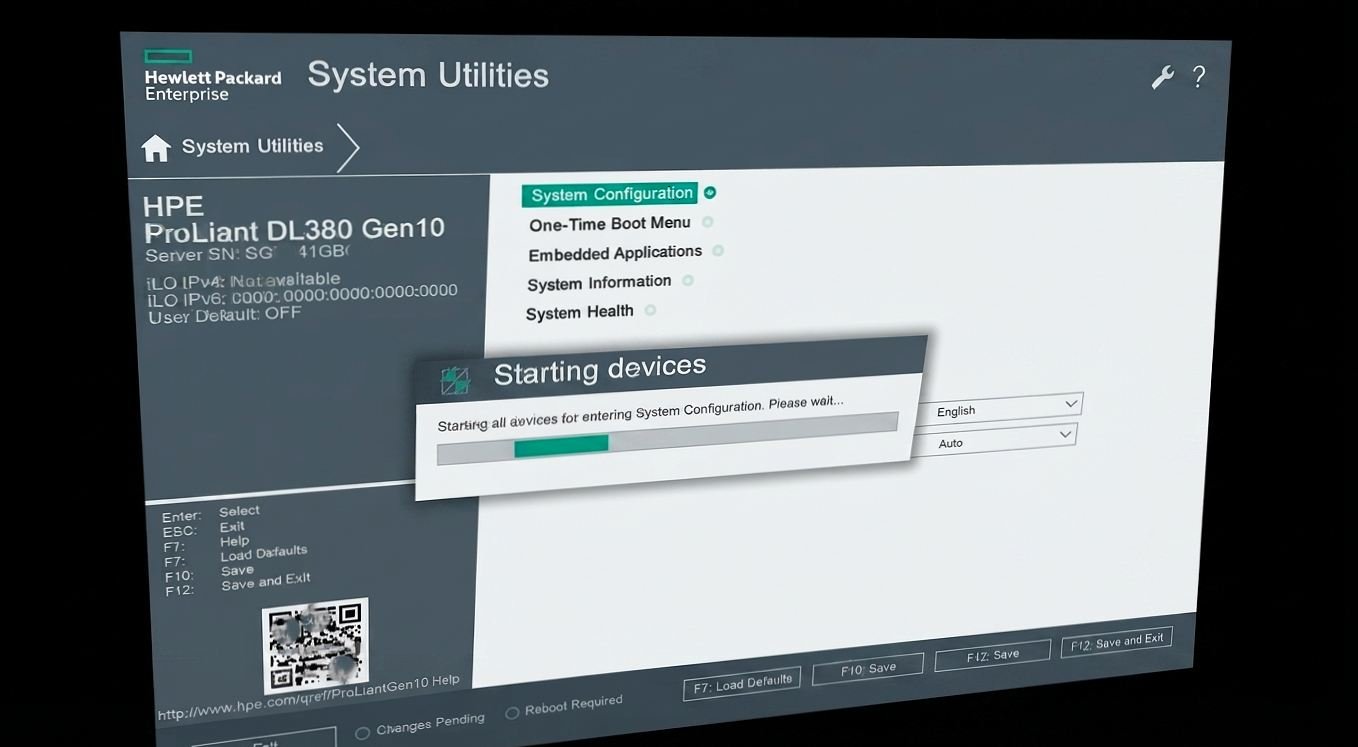
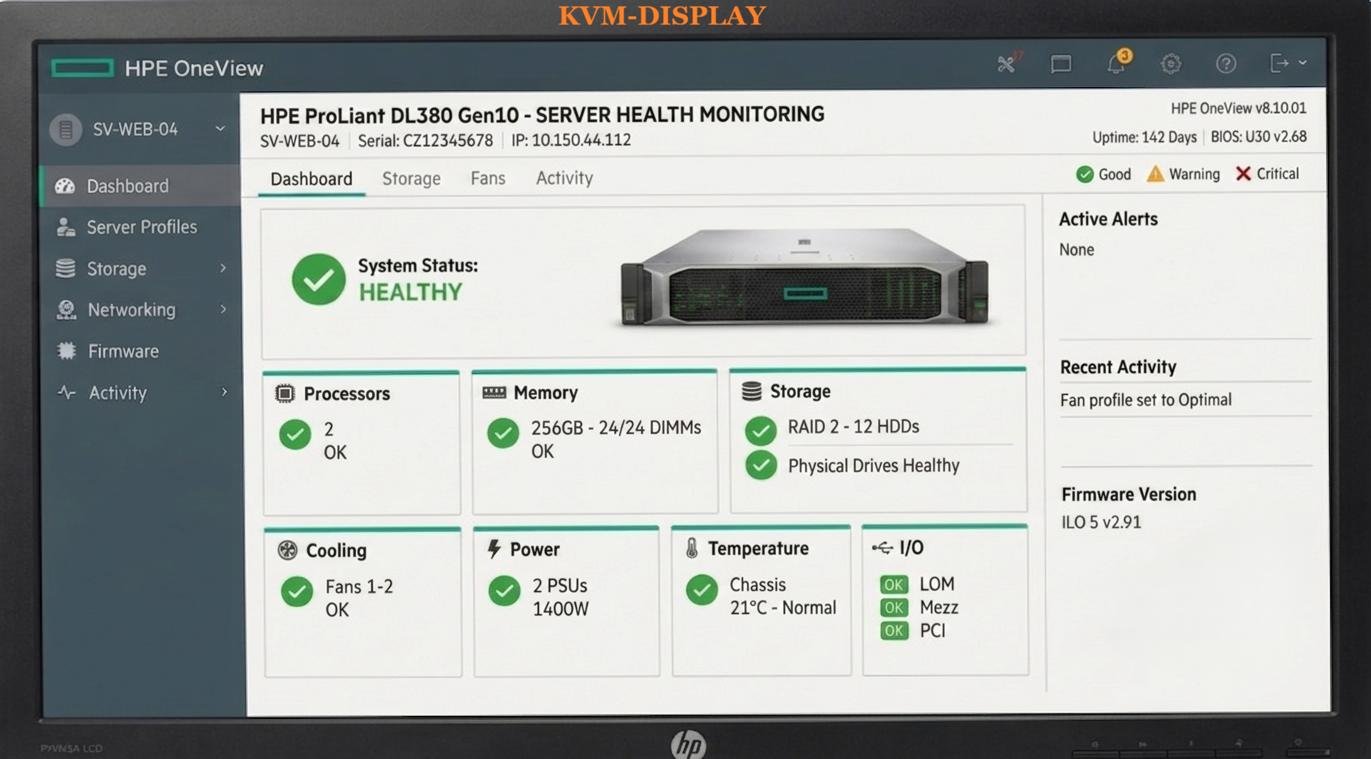
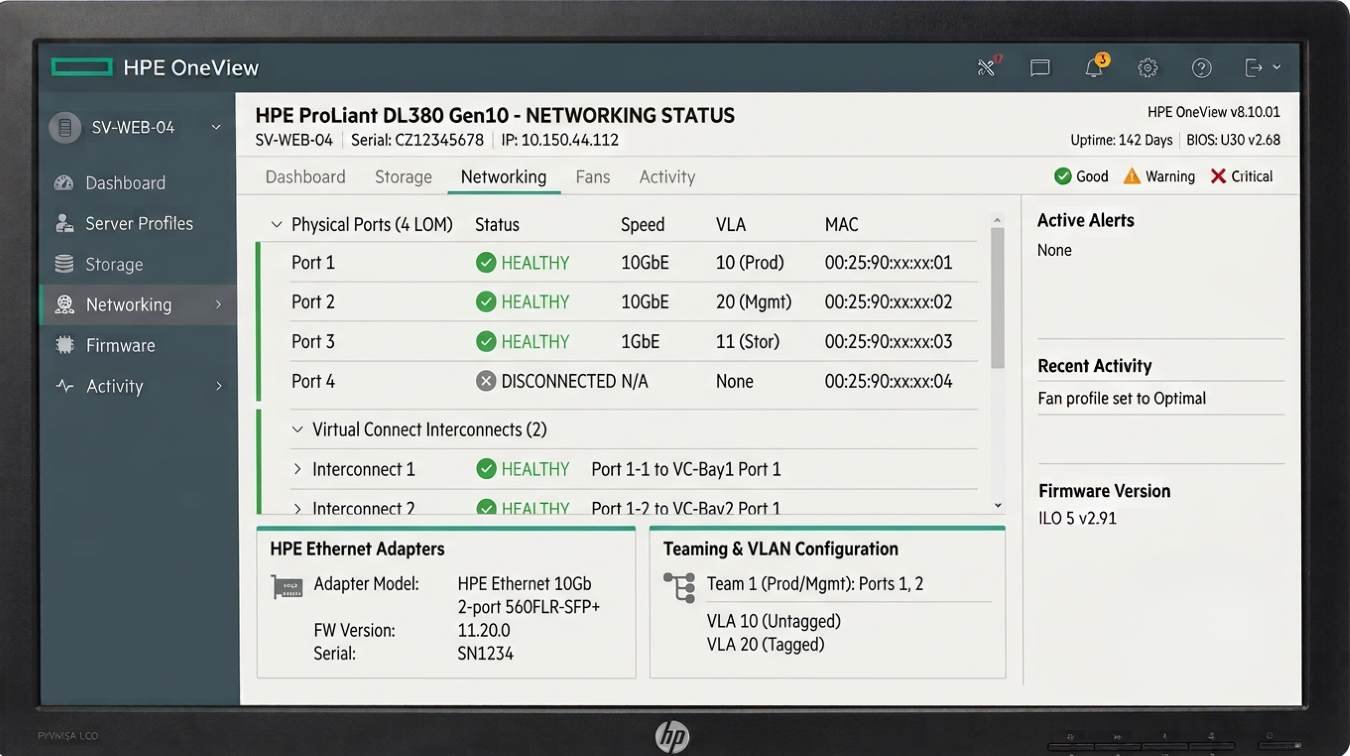
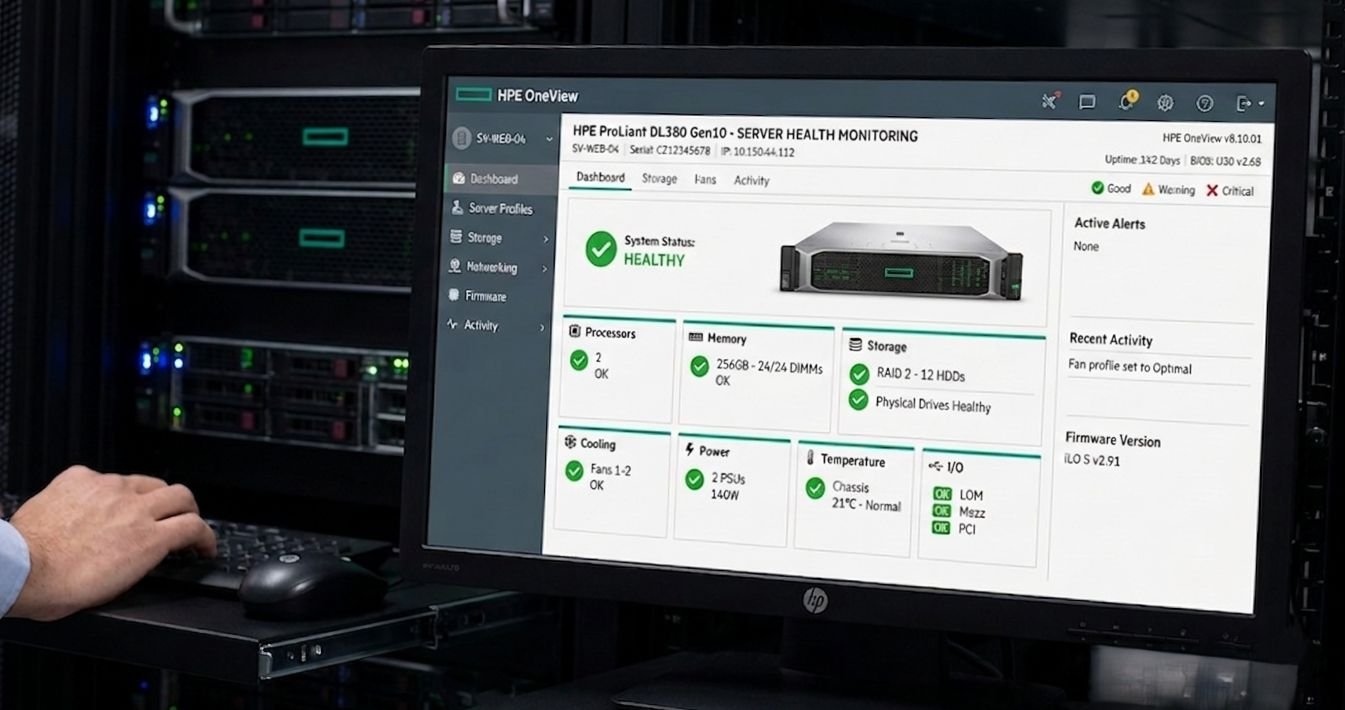
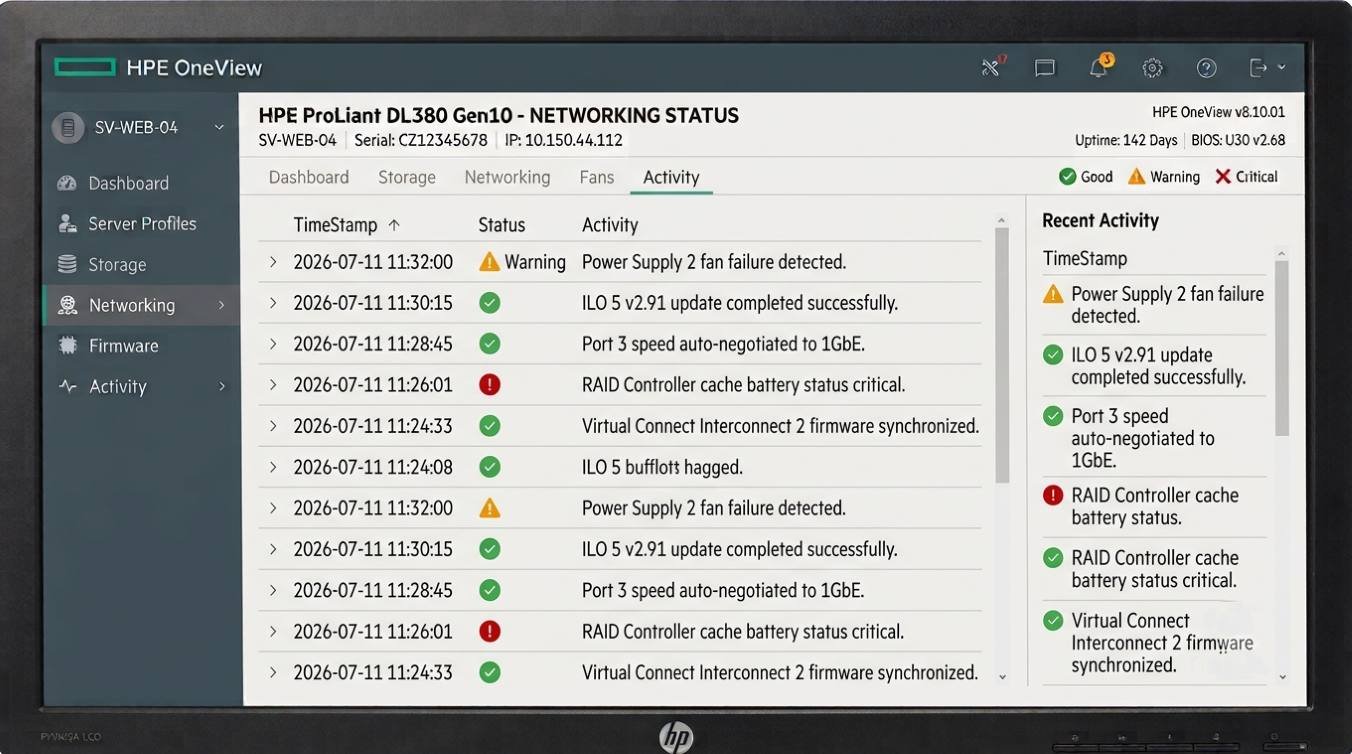
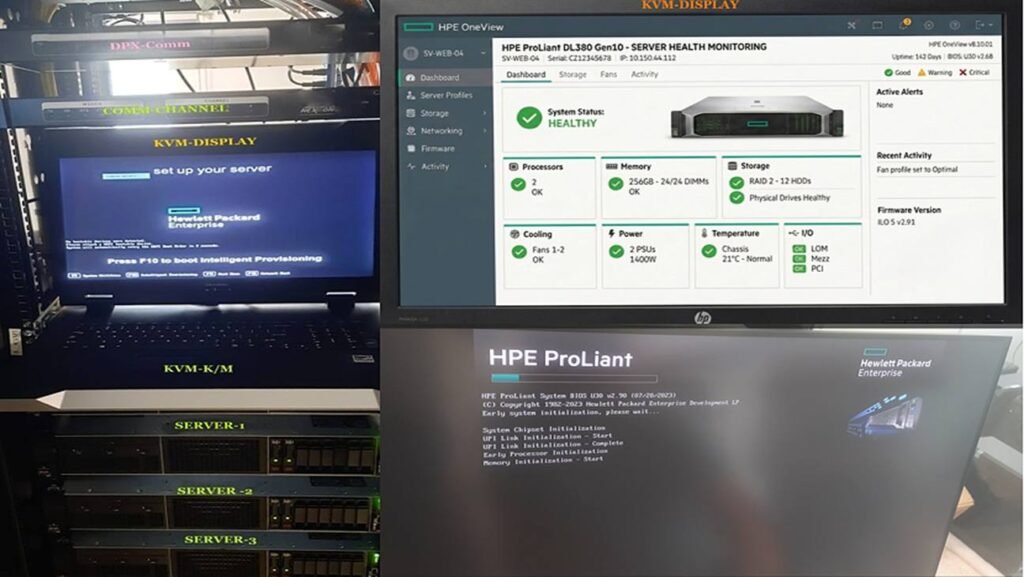
HPE System Utilities is a UEFI-based ROM setup application that comes pre-installed on all HPE ProLiant Gen9 through Gen11 servers. It has replaced the older legacy BIOS/RBSU. Since it runs directly from the server’s firmware/ROM, it does not require an operating system or a USB drive. It is launched by pressing the appropriate key when “HPE System Utilities” appears during the server boot process—much like accessing the setup screen on a traditional BIOS or KVM display as fig.

Follow the steps to perform to enhanced skill in real in field for advance level also to sees by a number of pictures and the following task 1. System Configuration: Power, processor, memory, BIOS and boot order settings. 2. Server Security: * Password setting, Patch Update ,TPM and secure boot enabled. 3. Storage Configuration:* Configure Smart Array controllers, create RAID arrays.. 4. Network Configuration: *Adjusting NIC settings, PXE boot, IP settings, and the UEFI network stack. 5. Firmware Updates:* Updating option ROMs, controllers, drivers and system firmware. 6. Diagnostics: Run Insight Diagnostics and view IML logs; also check fan and ambient temperatures . 7. Maintenance: NVRAM erasing, management of memory extensions and factory reset. : Advantages over BIOS/RBSU: UEFI-based: Supports >2TB disks, fast boot, Secure Boot, IPv4 PXE. GUI + Mouse Support: GUI + Mouse Support: Easier to navigate than the old(Before 9Gen) text-based RBSU. Unified: Unified: A single tool for configuration, diagnostics, and firmware .

UEFI 2.x compliant Redfish-managed iLO 5 / iLO 6 co-resident Accessible via F9 at POST

Root Menu Map

System ConfigurationBIOS/Platform, iLO 5, storage controllers, NICs
One-Time Boot MenuSingle-boot device override, no permanent change
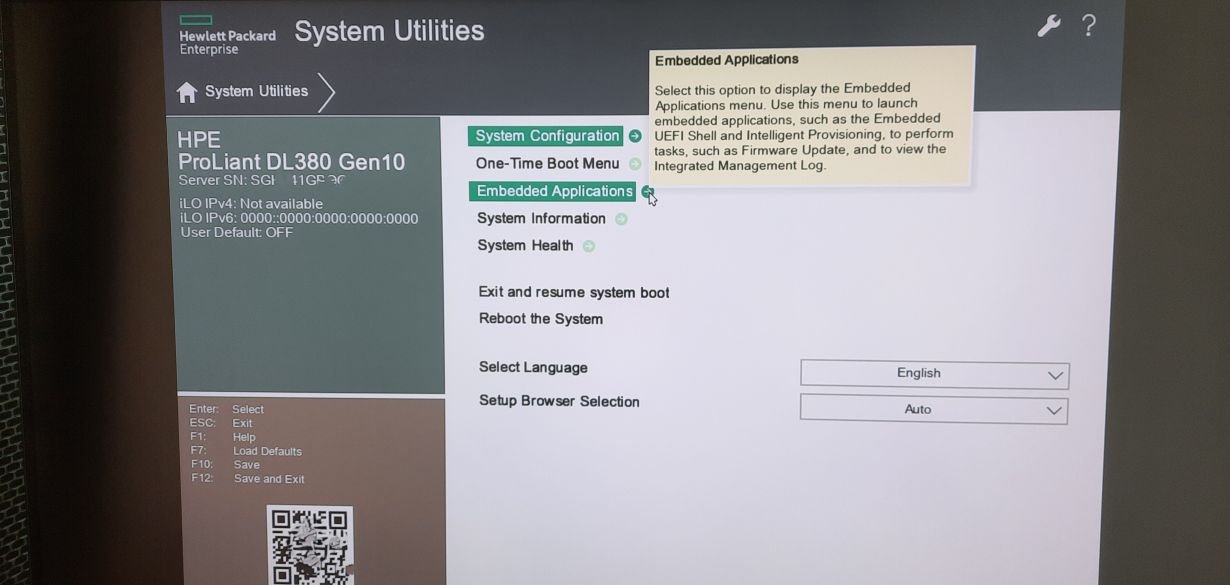
Embedded ApplicationsIntelligent Provisioning, iLO RBSU shortcuts
System InformationSerial number, asset tag, DIMM/CPU map
System HealthFan, thermal, power supply, POST error log
02 / HARDWARE OVERVIEW

ProLiant DL380 Gen10 — inside the chassis

https://tecxskill.com/hpe-system-utilities-configuration-and-deployment/

.

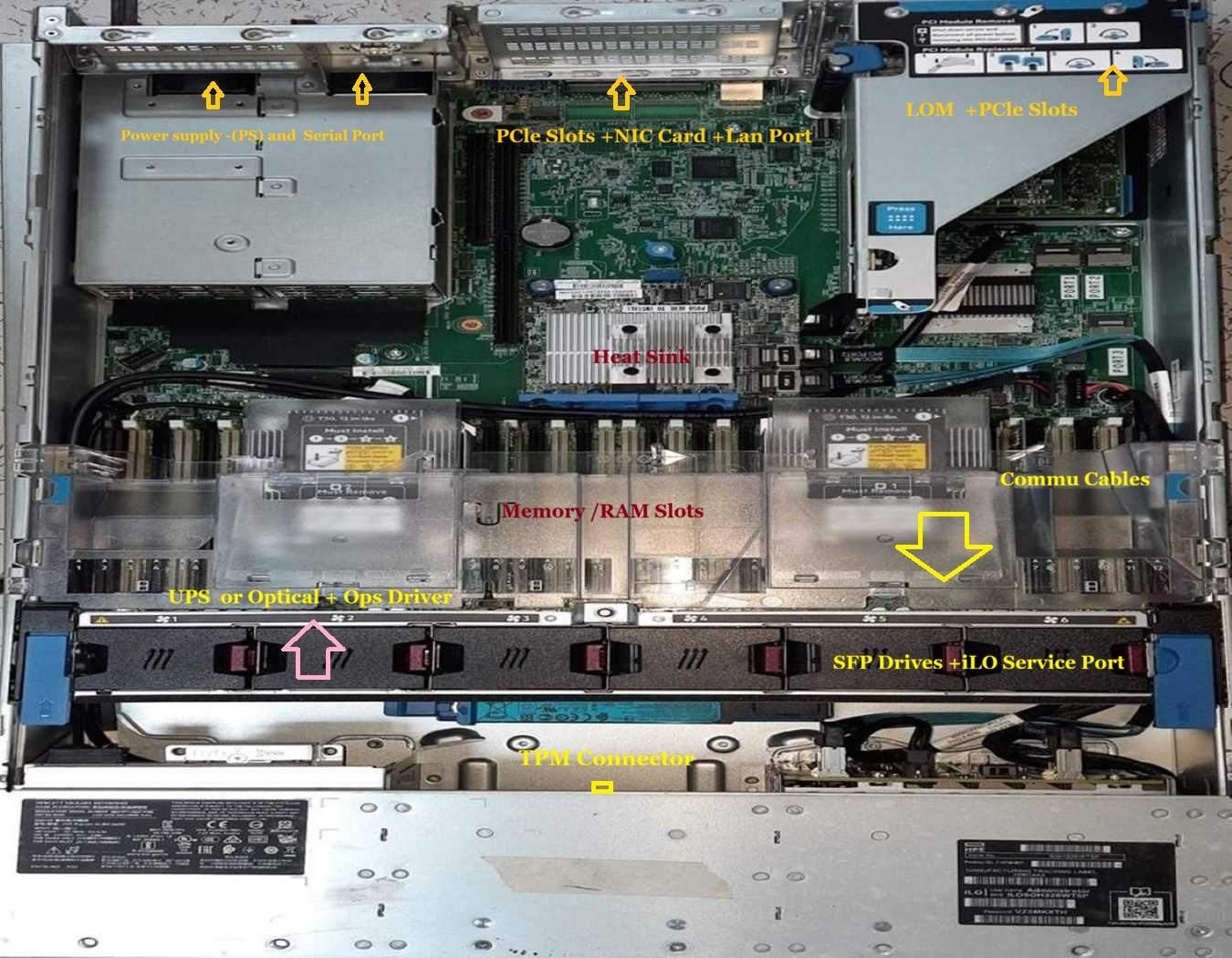
A dual-socket rack platform. The exploded Visual Image below maps physical hardware to the logical blocks that UEFI System Utilities configures and interrace on.

2U CHASSIS SYSTEM BOARD CPU0 CPU1 DIMM BANKS (x32 slots) iLO 5 ASIC RAID CTRL SFF DRIVE BAYS (up to 24) REDUNDANT PSU (1+1) HOT-PLUG FAN MODULES REAR I/O iLO Dedicated NIC FlexibleLOM 4x1GbE/2x10GbE 2x USB3 · VGA · Serial All blocks above are enumerated live inside System Utilities → System Information & System Health
FIG. 1 — Isometric hardware map: CPU / DIMM / iLO ASIC / Smart Array / drive bays / PSU / fans / rear I/O

2x CPU sockets

Intel Xeon Scalable (Gen10) or 3rd/4th Gen (Gen10 Plus) — up to 28 cores each, dual-socket UPI mesh.

32x DIMM slots

DDR4 RDIMM/LRDIMM, 8 channels/socket, up to 3TB with Optane PMem 100/200 support on select SKUs.

iLO 5 Management ASIC

Independent service processor with its own CPU, RAM, NIC — alive even when host is powered off (Auxiliary power only).

Smart Array / SR controllers

P408i-a (RAID) or E208i-a (HBA) embedded, or add-in Gen10 Plus SR controllers, NVMe switch options.

Up to 24 SFF / 12 LFF bays

SAS/SATA/NVMe hot-plug, tri-mode backplane on later SKUs mixing all three protocols per bay.

Redundant hot-Power plug PSU

500W–1600W Flex Slot, Titanium/Platinum efficiency, 1+1 redundancy.

Hot-plug fan modules

6x dual-rotor fans, N+1 redundant, dynamically speed-controlled from thermal sensors coolant .

FlexibleLOM + OCP

Modular rear networking bay independent of PCIe slots — 1/10/25GbE options.

03 / SEFTY BOOT SEQUENCE

From Power to OS handoff

Power On /Aux Rail iLO boots first POST Memory/CPU/PCIe self-test + init Key Window F9 Setup F11 Boot Menu System Utilities (F9 branch) One-Time Boot Menu (F11 branch) UEFI Boot Manager enumerates boot option list (NVRAM) Boot Loader GRUB2 / Windows Boot Manager OS Kernel loads → drivers → init/systemd → login
FIG. 2 — POST key window: F9 opens System Utilities (persistent config), F11 opens the One-Time Boot Menu (single-boot override, no NVRAM change)

F9 Setup

Enters System Utilities — permanent configuration changes saved to CMOS/NVRAM.

F11 Boot Menu

One-time override: pick a device for this boot only. Normal boot order is untouched.

F12 Network Boot

Force PXE boot on this cycle only — common for OS deployment/imaging.

F10 Diagnostics

Launches Intelligent Provisioning / Active Health System diagnostics environment.

ESC

Displays the full key legend if you miss the window; also exits nested menus.

iLO Web/Redfish

Same One-Time Boot override is settable remotely without touching the physical console.

04 / STEP-BY-STEP

Using the One-Time Boot Menu

https://tecxskill.com/hpe-system-utilities-configuration-and-deployment/

.

Power on or reboot the server

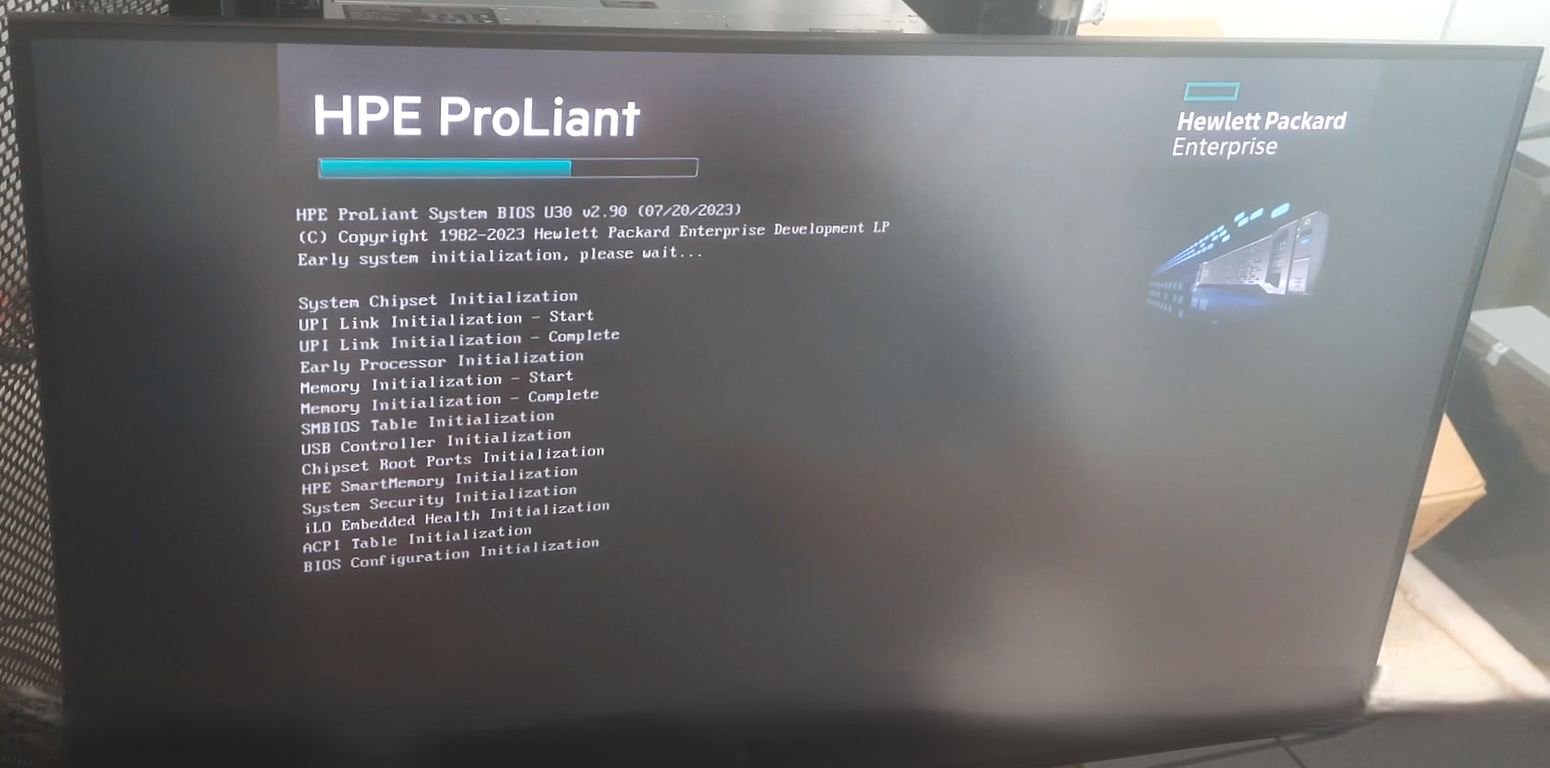
Watch the POST Starting screen. A key-prompt window appears for roughly 5–10 seconds near the HPE logo to refer picture

Press F9 to enter System Utilities

Loads the graphical UEFI HII shell shown in the reference screenshot — left rail root menu, help panel on the right.

Alternative: press F11 directly for the One-Time Boot Menu without opening the full setup shell.

Highlight “One-Time Boot Menu”

Use arrow keys or mouse. The context help panel on the right updates immediately: “Select this option to display the One-Time Boot Menu. Use this menu to choose a specific boot override option for this boot only. The selected option does not modify the normal boot order settings.”

Press Enter to open the sub-menu

A list of currently attached bootable devices is enumerated live: internal RAID logical drives, USB media, embedded NIC (PXE IPv4/IPv6), UEFI Shell, and any inserted virtual media from iLO in to see in picture

Select the target as your requirement device for configure

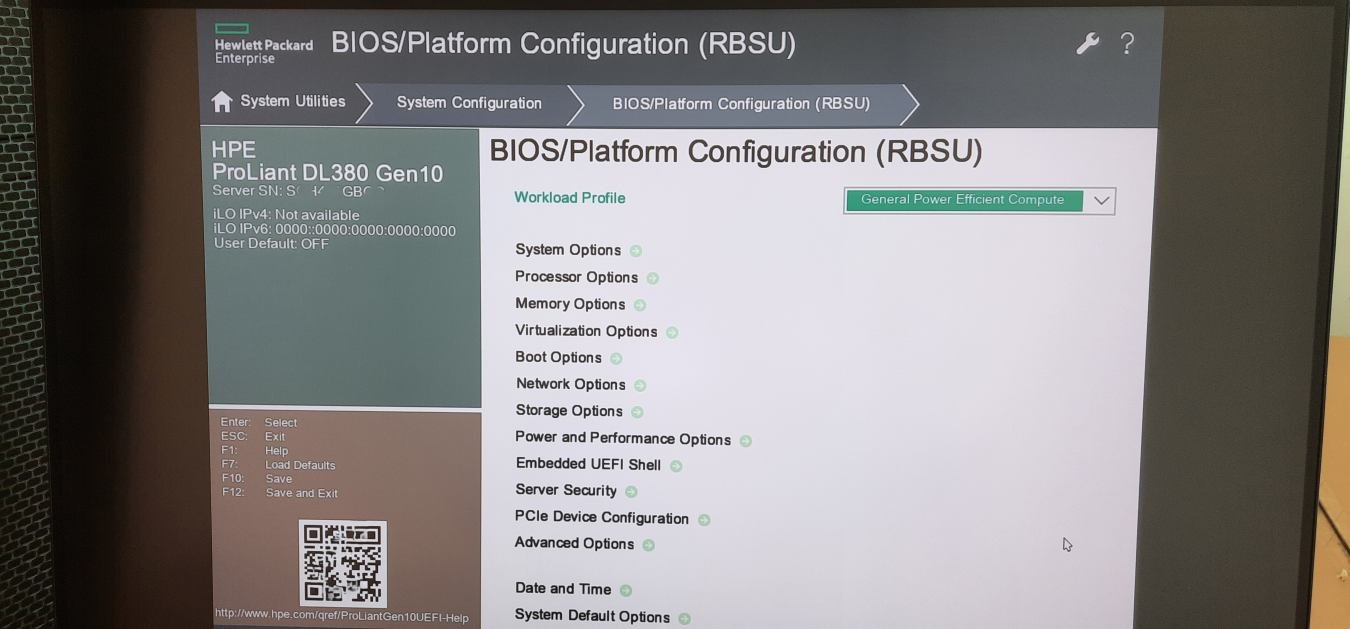
The system boots that device immediately for this power cycle only. On the next reboot, the server reverts to the order configured under System Configuration → BIOS/Platform Configuration (RBSU) → Boot Options as mentioned picture

(Optional) Exit without changes

Use “Exit and resume system boot” from the root menu, or ESC repeatedly, to fall back to the standard boot order untouched.

https://tecxskill.com/hpe-system-utilities-configuration-and-deployment/

.

05 / CONFIGURATION DEPTH — SEQUENTIALIN ALL STEPS

Every step, in the exact order in which you actually click on the server.

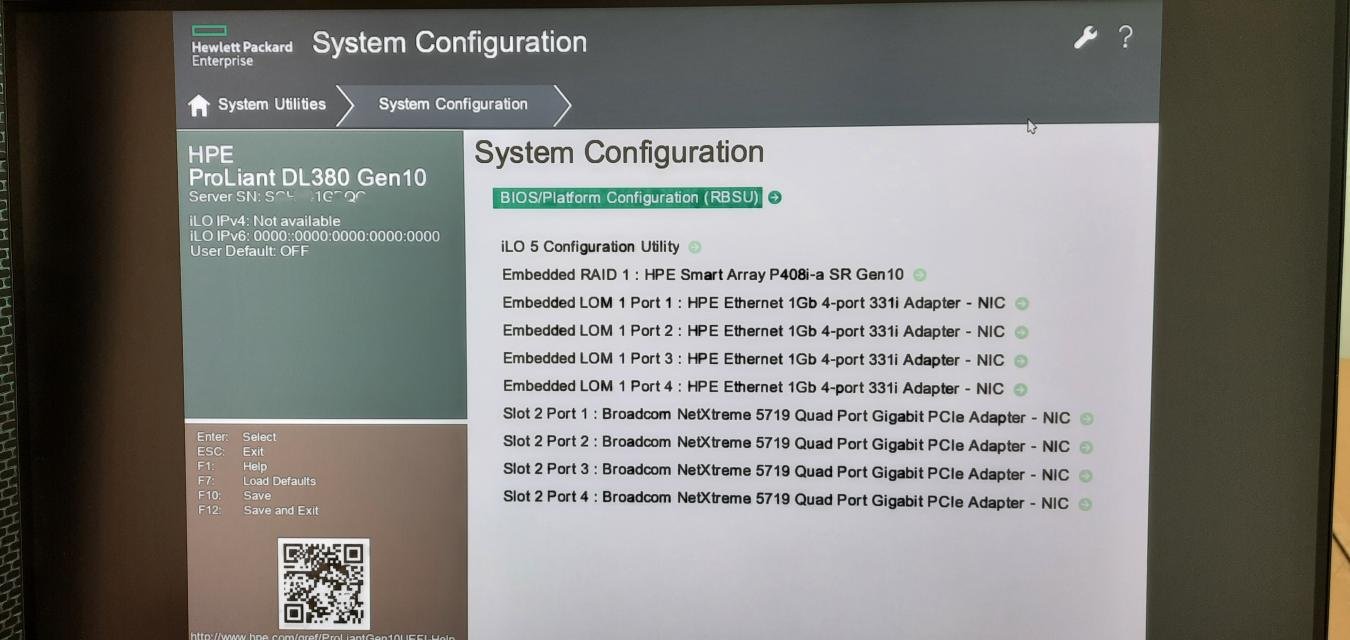
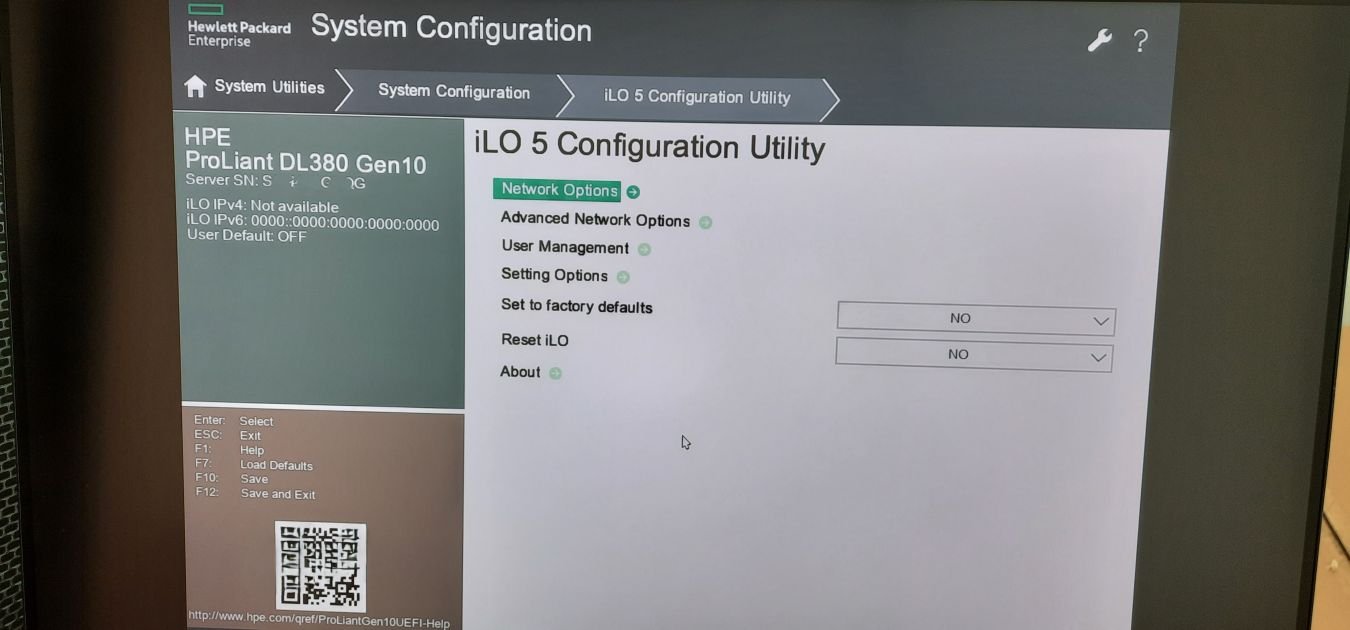
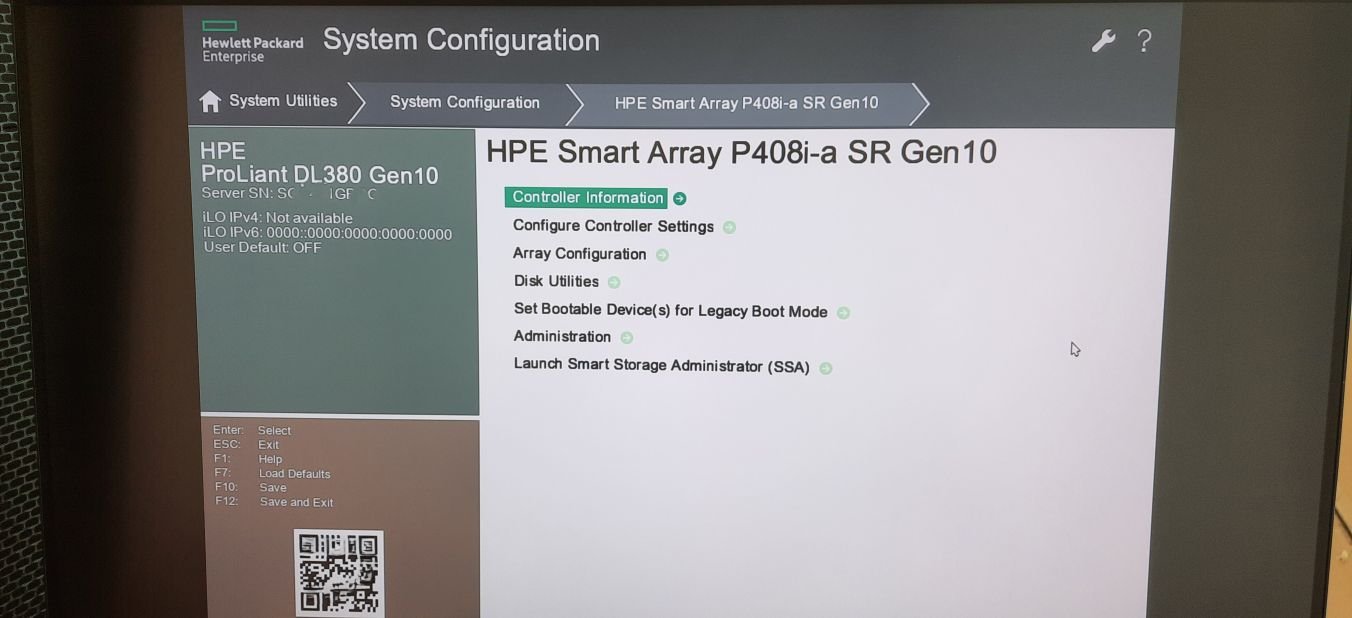
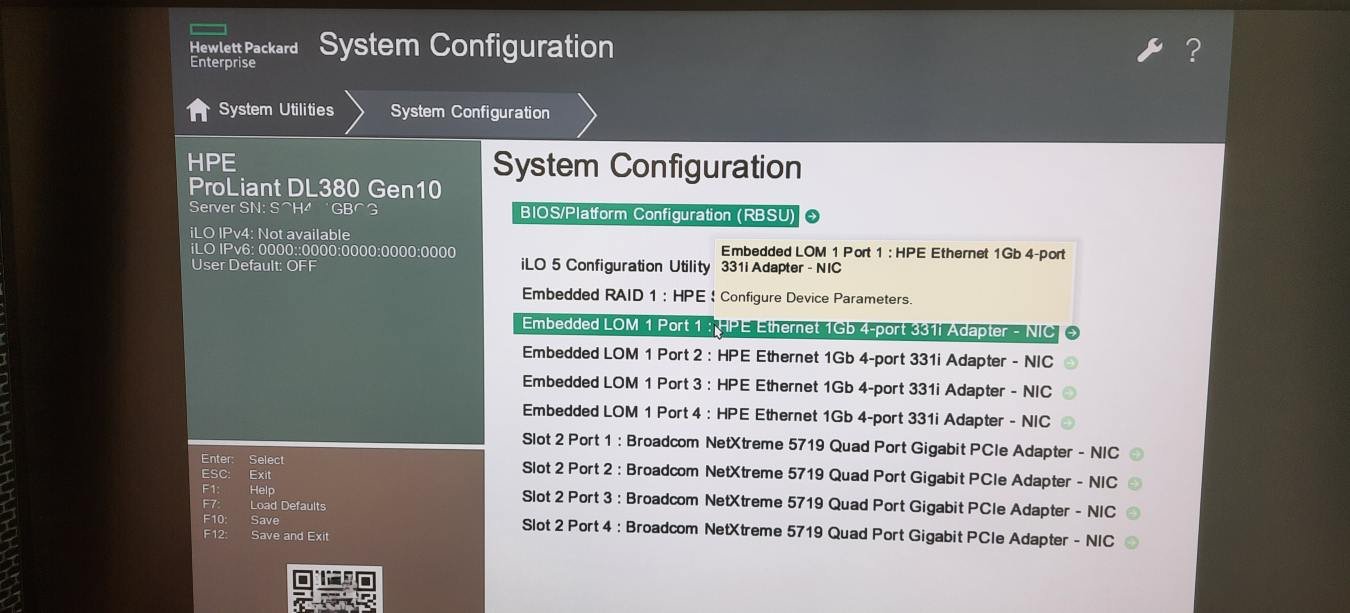
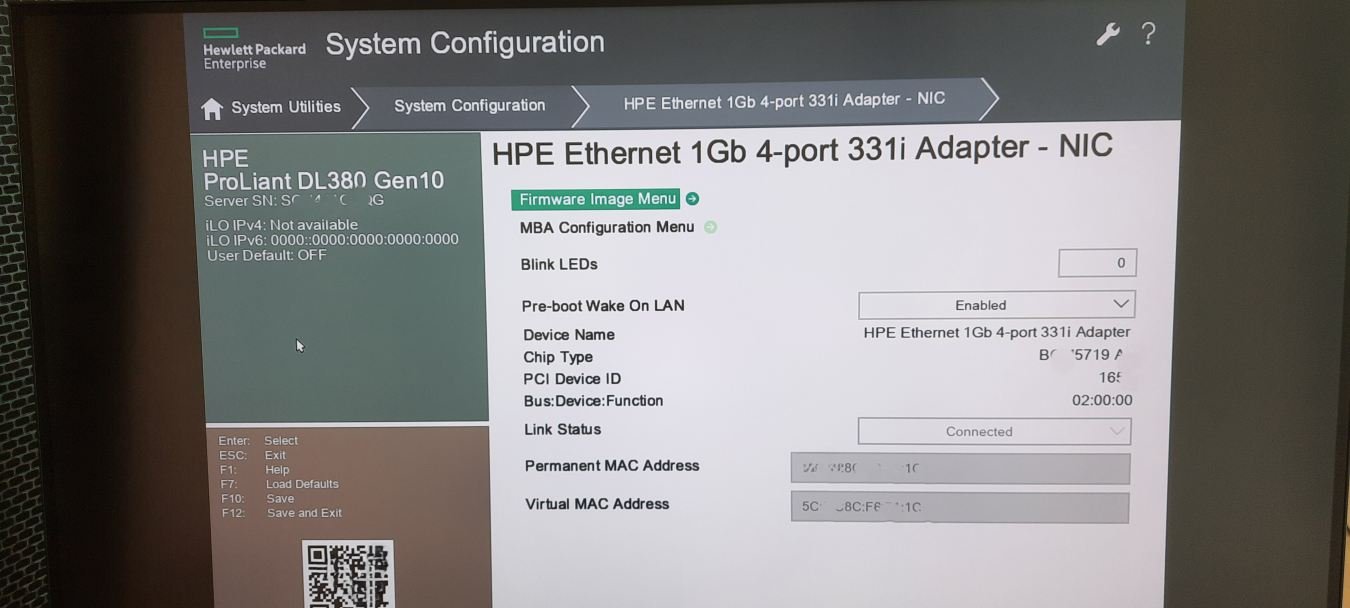
Five nested screens, captured in navigation order: root System Configuration → BIOS/Platform Configuration (RBSU) → iLO 5 Configuration Utility → embedded Smart Array controller → an individual NIC port’s detail page. Each item below states what it is, when it’s used, why it matters, and a worked tip/example so the sequence reads as a complete configuration Hand-on practices, not just a menu list.

System Configuration (root)

The deepest branch. Contains BIOS/Platform Configuration (RBSU), the embedded iLO 5 Configuration Utility, every storage controller’s own utility, and every NIC port — embedded LOM and PCIe add-in — as individual sub-menus.

One-Time Boot Menu

Non-persistent override (covered in Section 04). Implemented as a transient UEFI BootNext NVRAM variable auto-cleared after one successful boot attempt.

Embedded Applications

Launches Intelligent Provisioning (deployment, firmware update, diagnostics) without leaving firmware.

System Information

Read-only inventory: model, serial, UUID, installed CPUs/DIMMs, PCIe device list, firmware/driver versions.

System Health

Live sensor dashboard covered in depth in Section 08.

Select Language / Browser

UI localization and the underlying HII “Setup Browser” rendering engine (Auto = HPE-customized EDK2 browser).

05.1 — System Configuration root list

System Configuration
GEN10 · iLO IPv6 0000:0000:0000:0000

System Configuration

BIOS/Platform Configuration (RBSU)→
iLO 5 Configuration Utility→
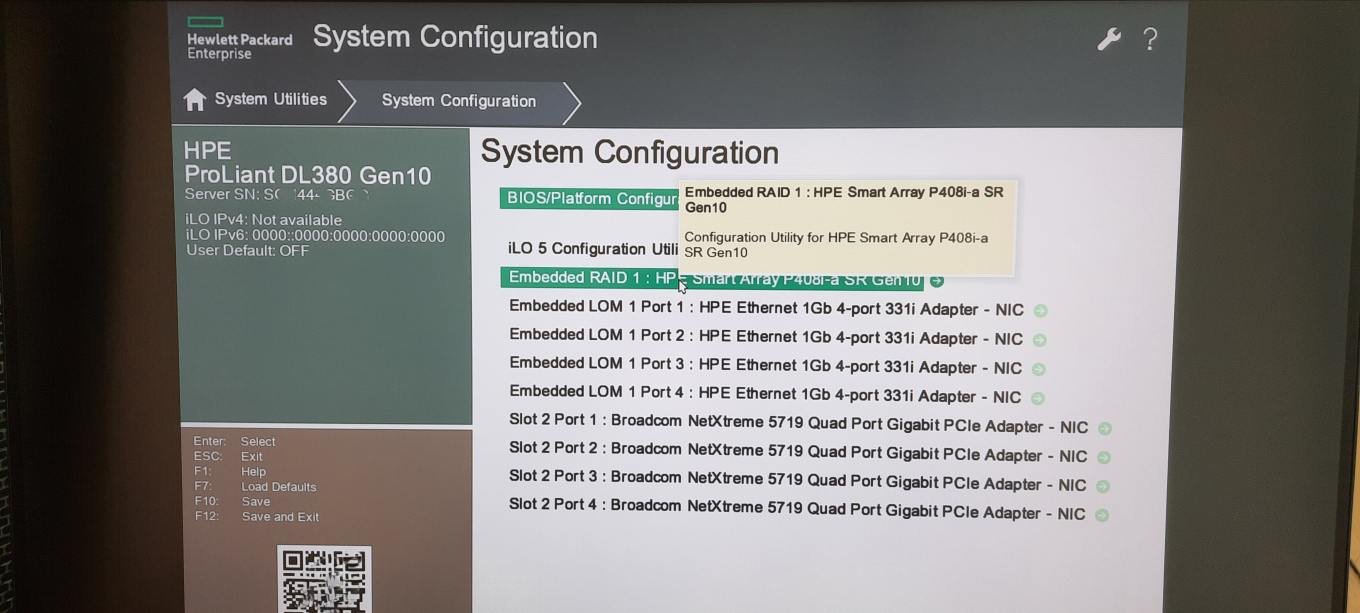
Embedded RAID 1 : HPE Smart Array P408i‑a SR Gen10→
Embedded LOM 1 Port 1 : HPE Ethernet 1Gb 4-port 331i Adapter – NIC→
Embedded LOM 1 Port 2 : HPE Ethernet 1Gb 4-port 331i Adapter – NIC→
Embedded LOM 1 Port 3 : HPE Ethernet 1Gb 4-port 331i Adapter – NIC→
Embedded LOM 1 Port 4 : HPE Ethernet 1Gb 4-port 331i Adapter – NIC→
Slot 2 Port 1 : Broadcom NetXtreme 5719 Quad Port Gigabit PCIe Adapter – NIC→
Slot 2 Port 2 : Broadcom NetXtreme 5719 Quad Port Gigabit PCIe Adapter – NIC→
Slot 2 Port 3 : Broadcom NetXtreme 5719 Quad Port Gigabit PCIe Adapter – NIC→
Slot 2 Port 4 : Broadcom NetXtreme 5719 Quad Port Gigabit PCIe Adapter – NIC→
https://tecxskill.com/hpe-system-utilities-configuration-and-deployment/

.

https://tecxskill.com/hpe-system-utilities-configuration-and-deployment/

.

Menu itemWhat it is / PurposeWhen usedWhy it mattersTip & example
BIOS/Platform Configuration (RBSU) Central hub for every platform-level hardware behavior setting. First-time commissioning, workload tuning, security hardening. Governs boot mode, virtualization, memory, and power — the foundation every other setting depends on. Always start a new server build here. Example: set Workload Profile to “Virtualization – Max Performance” before installing ESXi.
iLO 5 Configuration Utility Configures the out-of-band management controller directly from firmware. Initial iLO IP assignment, credential reset, factory reset. You need this working before any remote/lights-out access exists. Set a static IP here when the rack has no DHCP scope for management VLANs.
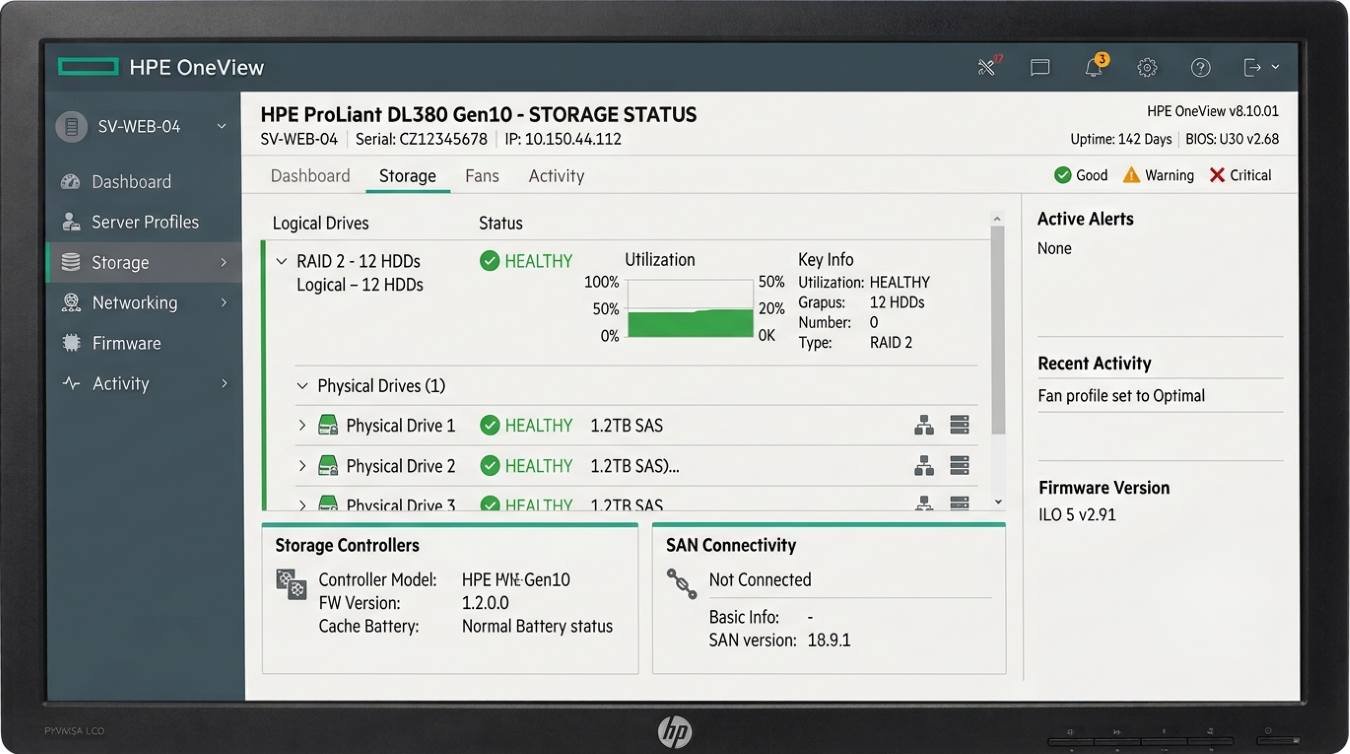
Embedded RAID 1: Smart Array P408i-a SR Gen10 Opens the embedded storage controller — array and logical drive configuration. Before first OS install, and during storage expansion or drive replacement. The OS cannot boot without a correctly initialized logical drive. Example: build the boot volume as RAID 1 across two 600GB SAS drives for OS resiliency as show in fig.
Embedded LOM 1 Port 1–4 (331i Adapter) Per-port configuration for the 4 embedded LAN-on-Motherboard NIC ports. Setting up PXE boot, Wake-on-LAN, or diagnosing a link issue on a specific onboard port. Boot-time network behavior is controlled per physical port here, not from the OS. Enable Pre-boot Wake On LAN only on the port cabled to your management/PXE VLAN, not on a production data port.
Slot 2 Port 1–4 (Broadcom NetXtreme 5719) Same style of per-port configuration for a PCIe add-in quad-port NIC. Extra network capacity, or isolating storage/vMotion traffic onto a dedicated card. Add-in cards enumerate as their own branch, separate from embedded LOM — useful for traffic segregation and independent firmware versions. Example: dedicate Slot 2 Port 1–2 to vSAN/storage traffic and leave embedded LOM for management only.

05.2 — BIOS/Platform Configuration (RBSU)

System Configuration›BIOS/Platform Configuration (RBSU)

BIOS/Platform Configuration (RBSU)

Workload ProfileGeneral Power Efficient Compute ▾
System Options→
Processor Options→
Memory Options→
Virtualization Options→
Boot Options→
Network Options→
Storage Options→
Power and Performance Options→
Embedded UEFI Shell→
Server Security→
PCIe Device Configuration→
Advanced Options→
Date and Time→
System Default Options→
https://tecxskill.com/hpe-system-utilities-configuration-and-deployment/

.

https://tecxskill.com/hpe-system-utilities-configuration-and-deployment/

.

Workload Profile is a preset bundle of dozens of underlying settings tuned for a use case (General Power Efficient Compute, Virtualization – Max Performance, Low Latency, Mission Critical, Custom). Changing it is the fastest way to retune a server — pick the closest preset first, then fine-tune individual branches below.
BranchPurposeWhen usedWhy it mattersTip & example
System OptionsEnable/disable onboard devices, embedded video, USB controllers.Locking down unused ports, freeing interrupts/resources.Reduces attack surface and resource contention.Disable unused embedded USB ports on a secured kiosk-style deployment.
Processor OptionsHyperthreading, core count, C-states, Intel Turbo Boost.Tuning for latency-sensitive vs throughput workloads.Directly shapes CPU performance-per-watt and jitter.Disable C-states for low-latency trading/telco workloads to avoid core-parking delay.
Memory OptionsMemory RAS mode: Advanced ECC, Mirrored, Lockstep; NUMA settings.Balancing capacity vs fault tolerance for the workload’s criticality.Mirrored mode halves usable capacity but survives a full DIMM failure without downtime.Use Lockstep for mission-critical DB hosts; Advanced ECC for general VM hosts to maximize usable RAM.
Virtualization OptionsVT-x, VT-d (IOMMU), SR-IOV enablement.Before installing any hypervisor (ESXi, Hyper-V, KVM).Hypervisors will not install/run correctly without VT-x; GPU/NIC passthrough needs VT-d.Enable VT-d before passing a physical NIC through to a VM for SR-IOV networking.
Boot OptionsUEFI vs Legacy BIOS boot mode, persistent boot order, Secure Boot toggle.Set once at OS install time; revisited during OS migrations.Boot mode must match how the target disk was partitioned (GPT=UEFI, MBR=Legacy).Mixing modes is the #1 cause of “no bootable device” — see Troubleshooting Section 13.
Network OptionsPer-NIC PXE enable/disable and network boot priority.Preparing a port for OS deployment/imaging.Only PXE-enabled ports appear as boot targets in the One-Time Boot Menu.Enable PXE IPv4 only on the port physically connected to your provisioning VLAN.
Storage OptionsSATA controller mode (AHCI/RAID), NVMe direct-attach behavior.Choosing between software RAID/AHCI passthrough vs hardware RAID.Wrong mode can hide drives from the OS installer entirely.Set to AHCI when installing an OS that expects raw disks (e.g. some Linux distros without RAID drivers).
Power and Performance OptionsPower regulator/profile, fan cooling policy, power capping (watts).Datacenter power budget enforcement, noise/thermal tuning.Power caps throttle CPU turbo before hardware thermal limits are hit — protects the circuit, not just the chip.Set a power cap matching your PDU circuit rating in a dense, power-constrained rack.
Embedded UEFI ShellEnable/disable direct boot into the UEFI Shell environment.Advanced diagnostics, manual driver loading, NVRAM variable inspection.A powerful low-level tool — leave disabled in production unless actively troubleshooting.Use bcfg boot dump in the Shell to inspect raw UEFI boot entries.
Server SecurityTPM/TM state, Secure Boot key management, power-on password policy.Compliance hardening, BitLocker/measured boot deployments.Root of the platform’s trust chain — covered fully in Section 10.Enable TPM before enabling BitLocker in Windows, or the volume won’t auto-unlock at boot.
PCIe Device ConfigurationPer-slot enable/disable, bifurcation (x16→x4x4x4x4), option ROM control.Installing NVMe switch cards, GPUs, or multi-device riser cards.Wrong bifurcation setting makes a quad-NVMe carrier show only one drive.Set a riser to x4x4x4x4 bifurcation before installing a 4-drive NVMe carrier card.
Advanced OptionsACPI settings, chipset-level low-level tuning.Rare — vendor/HPE-support-guided troubleshooting only.Missetting these can destabilize the platform.Only change on explicit guidance from an HPE Support engineer or advisory.
Date and TimeReal-time clock configuration, timezone.Initial setup, after CMOS battery replacement.Wrong system time breaks TLS certificate validation and log correlation.Sync to NTP at the OS level immediately after install; RTC is just the cold-boot fallback.
System Default OptionsDefines exactly what gets restored when F7 (Load Defaults) is pressed.Before performing a factory reset.Some defaults intentionally preserve network/iLO settings — know which profile you’re resetting to.Review this before decommissioning/re-purposing a server for a different team.

05.3 — iLO 5 Configuration Utility

System Configuration›iLO 5 Configuration Utility

iLO 5 Configuration Utility

Network Options→
Advanced Network Options→
User Management→
Setting Options→
Set to factory defaultsNO ▾
Reset iLONO ▾
About→
https://tecxskill.com/hpe-system-utilities-configuration-and-deployment/

.

ItemPurposeWhen usedWhy it mattersTip & example
Network OptionsIPv4/IPv6 address mode (DHCP/static), VLAN tag, shared vs dedicated NIC.First-boot iLO network setup, or moving the server between subnets.No remote/lights-out access exists until this is correctly set.Example: assign static IPv4 10.20.1.50/24, gateway 10.20.1.1 when DHCP isn’t offered on the mgmt VLAN.
Advanced Network OptionsNIC teaming/failover, SNTP, VLAN priority, link speed/duplex overrides.Redundant management network designs, strict time-sync requirements.Ensures iLO stays reachable even during a NIC or switch-port failure.Point SNTP at two internal NTP servers so iLO event timestamps match your SIEM.
User ManagementCreate/edit local iLO accounts and role-based privileges.Onboarding admins, service accounts for automation tools.iLO RBAC is the gatekeeper for remote console, virtual media, and config-write access.Create a scoped “automation” account with Config-only privilege for Ansible, not full Administrator.
Setting OptionsGeneral iLO behavior: idle timeout, F8 prompt, DHCP options.Hardening default behavior post-deployment.Small settings here reduce accidental/insecure access windows.Lower the idle session timeout on shared jump-host consoles.
Set to factory defaultsWipes iLO configuration (network, users, certs) back to factory state.Decommissioning, or recovering from a badly misconfigured iLO.Destructive — you will lose remote access until re-provisioned locally.Only flip to YES from the physical console, during an approved maintenance window.
Reset iLOSoft-reboots the iLO management processor only (host OS is unaffected).iLO web GUI unresponsive, after a firmware flash, applying network changes.Non-destructive alternative to a full factory reset.Try Reset iLO first before reaching for factory defaults when the web GUI hangs.
AboutDisplays iLO firmware version, license tier (Standard/Advanced), hardware revision.Pre-upgrade checks, license verification, support case creation.Confirms feature availability — e.g. Advanced license required for full Remote Console and video capture.Screenshot this page when opening an HPE support case — they will ask for it.

05.4 — HPE Smart Array P408i-a SR Gen10

System Configuration›HPE Smart Array P408i-a SR Gen10

HPE Smart Array P408i-a SR Gen10

Controller Information→
Configure Controller Settings→
Array Configuration→
Disk Utilities→
Set Bootable Device(s) for Legacy Boot Mode→
Administration→
Launch Smart Storage Administrator (SSA)→
https://tecxskill.com/hpe-system-utilities-configuration-and-deployment/

.

ItemPurposeWhen usedWhy it mattersTip & example
Controller InformationRead-only: firmware version, cache size, battery/capacitor status, PCIe link width.Pre-upgrade checks, warranty/support cases, cache health verification.A degraded cache battery silently drops write performance — catch it here before it’s a mystery slowdown.Check this immediately after any unexpected performance drop on a RAID volume.
Configure Controller SettingsCache ratio (read/write %), background rebuild priority, SSD Smart Path.Performance tuning for the workload’s I/O pattern.Rebuild priority trades data-safety speed against production I/O impact during a drive replacement.Raise rebuild priority temporarily during a maintenance window to shorten degraded-redundancy exposure.
Array ConfigurationCreate/delete/expand arrays and logical drives, set RAID level.Before first OS install; adding capacity; replacing failed drives.This is where physical drives become the logical volume the OS actually sees.Example: 2×600GB SAS in RAID 1 for the OS boot LUN, separate from a larger RAID 6 data array.
Disk UtilitiesPer-physical-drive actions: erase, locate (blink LED), firmware update.Identifying a specific failed bay physically, secure-erasing a drive before RMA.Prevents pulling the wrong drive in a densely populated 24-bay chassis.Use “Locate” to blink the exact bay LED before a hot-swap — don’t rely on bay numbering alone.
Set Bootable Device(s) for Legacy Boot ModeChooses which logical drive is bootable when running in Legacy BIOS mode (not UEFI).Only relevant if Boot Mode = Legacy (older OS/appliance compatibility).Legacy mode boot device selection is separate from the UEFI boot order list.Irrelevant on a pure UEFI/GPT deployment — skip unless supporting a legacy appliance image.
AdministrationController-level actions: enable/disable controller, clear configuration.Controller replacement, full storage reconfiguration from scratch.“Clear configuration” is destructive to array metadata — data loss risk.Always confirm backups exist before using Clear Configuration.
Launch Smart Storage Administrator (SSA)Opens the full graphical storage management application (richer than the basic HII forms).Complex array layouts, detailed diagnostics, scheduled tasks.SSA exposes options the quick RBSU-style forms don’t, e.g. detailed SMART data per drive.Use SSA (not the basic forms) when planning a mixed RAID 1 + RAID 6 layout across the same controller.

05.5 — NIC port detail in Network (Embedded LOM example)

System Configuration›HPE Ethernet 1Gb 4-port 331i Adapter – NIC

HPE Ethernet 1Gb 4-port 331i Adapter – NIC

Firmware Image Menu→
MBA Configuration Menu→
Blink LEDs0
Pre-boot Wake On LANEnabled ▾
Device NameHPE Ethernet 1Gb 4-port 331i Adapter
Chip TypeBCM5719 A1
PCI Device ID1657
Bus:Device:Function02:00:00
Link StatusConnected ▾
Permanent MAC Address●●:●●:●●:●●:●●:●●
Virtual MAC Address●●:●●:●●:●●:●●:●●
https://tecxskill.com/hpe-system-utilities-configuration-and-deployment/

.

https://tecxskill.com/hpe-system-utilities-configuration-and-deployment/

.

ItemPurposeWhen usedWhy it mattersTip & example
Firmware Image MenuView/flash the NIC’s own onboard firmware image.Aligning NIC firmware to the SPP baseline; resolving a known NIC bug.Out-of-date NIC firmware is a common cause of intermittent link flaps under load.Check this after any SPP update to confirm the flash actually applied to every port.
MBA Configuration MenuConfigures the Multi-Boot Agent — PXE stack that runs on this specific port.Setting up network boot/PXE imaging on this exact port.PXE boot behavior (protocol, boot retry, VLAN) is set per-port here, independent of OS drivers.Enable PXE only on the port physically wired to your imaging VLAN to avoid rogue PXE responses.
Blink LEDsTriggers the physical port LED to blink for a set count.Physically identifying which rear port a cable is (or should be) connected to.Saves guesswork tracing cables in a dense rear-panel patch mess.Set to a few blinks, then visually confirm before pulling/re-seating a cable.
Pre-boot Wake On LANAllows a magic packet to power on the server via this port before OS boot.Remote power-on for scheduled maintenance/patch windows without physical access.Must be enabled on the specific port your WOL tooling targets — it is not global.Enable on one dedicated management port only; leave disabled on production data ports for security.
Device Name / Chip Type / PCI Device ID / Bus:Device:FunctionRead-only hardware identity — exact silicon (Broadcom BCM5719), PCI ID, and PCIe address.Driver troubleshooting, matching against OS lspci/Device Manager output.Confirms the OS is loading the correct driver for the actual silicon, not a generic fallback.Cross-check Bus:Device:Function (02:00:00) against lspci output in Linux to confirm OS/firmware agree on device mapping.
Link StatusLive physical link state (Connected/Disconnected) for this port.First check during any “port seems dead” report.Confirms the problem is physical/switch-side before chasing OS or cabling elsewhere.If Link Status shows Disconnected here but the OS driver loads fine, suspect the cable or switch port, not the NIC.
Permanent / Virtual MAC AddressBurned-in factory MAC vs. an administratively overridden Virtual MAC (used by some LOM/teaming/BMC features).DHCP reservations, firewall/802.1X MAC-based policies, license bindings.Sensitive identifier — treat like other hardware secrets when sharing screenshots externally.Always redact/blur MAC addresses in screenshots shared outside your organization, as done in the source capture.

Boot Options priority (persistent)

Set under System Configuration → BIOS/Platform Configuration (RBSU) → Boot Options. This is the order the server falls back to on every normal power cycle, distinct from the one-time override in Section 03/04.

PriorityTypical device
1Internal RAID logical drive (OS disk)
2Embedded NIC — PXE IPv4
3Embedded NIC — PXE IPv6
4USB removable media
5UEFI Shell
06 / DATA FLOW

How management data Flow and Protocol

System utilities and iLO (Integrated Lights-Out) connect directly via iLO’s independent chip. This means that settings and health checks operate completely independently of the main operating system. Consequently, iLO remains fully functional, enabling remote administration and control even if the host OS crashes or is not running at all.

Admin WS iLO 5 / iLO 6 Redfish REST API Web GUI · SSH · IPMI Virtual Media · vKVM UEFI System UTI HII forms ↔ iLO shared memory / SMBIOS tables NVRAM boot variables Platform Sensors I2C/SMBus temp, fan, PSU DIMM SPD, CPU MSR PCIe device presence AHS + IML Active Health System & Integrated Mgmt Log Uploaded to HPE support DOWNSTREAM CONSUMERS OF REDFISH/iLO DATA HPE OneViewfleet orchestration iLO Amplifier Packfirmware/security scan Ansible / Terraformredfish modules, IaC SCVMM / VMware vCenterhypervisor lifecycle SIEM / Splunklog ingestion
FIG. 3 — iLO acts as the shared broker between UEFI forms, host sensors, the AHS/IML log, and every external management tool via Redfish
07 / RAID -STORAGE PROVISIONING

RAID and Array, Boot-disk setup from firmware

Reached at System Configuration → [Controller name] → Array Configuration Utility or the standalone Smart Storage Administrator (SSA) under Embedded Applications. This is where physical drives become logical drives long before an OS ever sees a disk.

  • → Create/delete arrays and logical drives (RAID 0/1/5/6/10/50/60)
  • → Set the boot (primary) logical drive for the UEFI boot order
  • → Assign spares, set stripe size, caching policy, SED encryption keys
  • → Migrate RAID levels or expand arrays online
  • → Mixed tri-mode backplane: SAS + SATA + NVMe on one controller
RAID 1+0 — 4 drives Disk 0 Disk 1 mirror pair A Disk 2 Disk 3 mirror pair B Logical Drive 1 Striped across A + B Marked: UEFI Boot Target Status: OK / Rebuild N/A
FIG. 4 — RAID levels available in Array Configuration, compared by usable capacity, fault tolerance, and typical use
https://tecxskill.com/hpe-system-utilities-configuration-and-deployment/

.

https://tecxskill.com/hpe-system-utilities-configuration-and-deployment/

.

RAID LEVEL COMPARISON — 4× equal-size drives, illustrative RAID USABLE CAPACITY FAULT TOLERANCE BEST FOR RAID 0 100% None — single drive loss = data loss Scratch/cache, max raw speed RAID 1 Survives 1 drive failure per mirror pair OS/boot volume, small critical DBs RAID 5 Survives 1 drive failure (parity) File/print servers, general data RAID 6 Survives 2 simultaneous drive failures Large-capacity arrays, long rebuild windows RAID 10 Survives 1 per mirror pair, fastest rebuild Databases — boot LUN in this reference Bar length = usable capacity relative to raw · configured under Array Configuration → Create Array/Logical Drive
Boot mode matters: a logical drive formatted GPT only boots under UEFI mode; MBR disks require Legacy BIOS mode. Mismatches are one of the most common “no bootable device” errors after fresh OS installs.
08 / MONITORING & HEALTH

Monitoring System Health screen

https://tecxskill.com/hpe-system-utilities-configuration-and-deployment/

.

Fans

RPM per module, redundancy state. Amber = degraded (one rotor failed, still airflow); Red = fan failure with thermal risk.

Power Supplies

Input voltage present, output wattage, redundancy lost/OK, PSU firmware mismatch warnings.

Temperature

Per-zone thermal sensors (CPU, DIMM, ambient inlet, PCIe riser). Threshold breach throttles CPU or triggers fan ramp.

Processor

Presence, cache size, QPI/UPI link status, and any predictive-failure flags from CPU MCA banks.

Memory

Per-DIMM status, ECC correctable/uncorrectable error counters, and Advanced Memory Protection mode (mirror/lockstep/RAID).

IML / POST Errors

Time-stamped Integrated Management Log entries — the first place to check after any unexpected reboot.

https://tecxskill.com/hpe-system-utilities-configuration-and-deployment/

.

https://tecxskill.com/hpe-system-utilities-configuration-and-deployment/

.

IndicatorLocationMeaningTypical action
Front panel Health LED / UIDAll monitored subsystems normalNone
Front panel Health LEDDegraded — redundancy loss, non-fatal sensor warningCheck System Health tab / iLO IML same shift
Front panel Health LEDCritical — component failure impacting operationImmediate hardware triage, open HPE case if under warranty/CarePack
Any component LEDUnpowered / not present / no fault detectedConfirm expected state
iLO UID (blue)Front & rearPhysical unit identification, toggled remotelyUse to locate correct rack unit before service
09 / MAINTENANCE & POLICY

Firmware, function keys, and change control

https://tecxskill.com/hpe-system-utilities-configuration-and-deployment/

.

F7 Load Defaults

Resets all UEFI settings to factory defaults. Does not touch iLO network config or user accounts by default.

F10 Save

Commits current form changes without exiting the menu tree — useful mid-way through a multi-page configuration pass.

F12 Save & Exit

Commits all changes and resumes the boot sequence immediately.

Firmware baseline

Update via Service Pack for ProLiant (SPP), Intelligent Provisioning, or iLO-initiated online flash — align System ROM, iLO, NIC, and controller firmware together.

https://tecxskill.com/hpe-system-utilities-configuration-and-deployment/

.

Recommended change-control policy

Policy areaRecommendation
Firmware cadenceApply SPP baseline quarterly or per HPE Security Bulletin severity; test in staging cluster before production rollout.
Config driftExport server profile via iLO RESTful/Redfish and version-control it (GitOps) or manage centrally with OneView Server Profiles.
One-Time Boot usageRestrict to imaging/PXE/rescue scenarios; never use as a substitute for setting the persistent boot order.
Default credentialsRotate the initial iLO administrator password on first boot; disable factory default account after AD/LDAP or local admin is provisioned.
Change windowF7 (load defaults) and RAID rebuilds should only occur inside an approved maintenance window — both can be service-impacting.
Audit trailiLO logs every remote configuration change with user identity — review the Security Log during compliance audits.
10 / SECURITY & POLICY

Platform root-of-trust policy and integrity

Secure Boot

UEFI validates boot loader/OS kernel signatures against enrolled keys (PK/KEK/db). Blocks unsigned or tampered boot chains.

HPE Silicon Root of Trust

iLO 5/6 firmware is cryptographically validated at power-on before any other code executes — industry-first hardware-anchored chain of trust.

TPM 2.0 / TM

Trusted Platform Module for BitLocker, measured boot attestation, and platform key sealing; state toggled under RBSU Server Security.

Runtime Firmware Verification

iLO periodically re-scans firmware images against known-good hashes and can auto-recover a corrupted BIOS from a protected flash region.

Local user / RBAC

iLO local accounts plus AD/LDAP federation with per-role privileges (Login, Remote Console, Virtual Media, Config, User Admin).

Encrypted media & SED

Self-encrypting drives managed through the Smart Storage Administrator; key escrow optional via HPE Secure Encryption / enterprise KMS.

Disabling Secure Boot to install an unsigned driver or dual-boot an older OS temporarily removes a real integrity guarantee — document the exception and re-enable it once resolved.
11 / SOFTWARE INTEGRATION

Where does it integrate into the UEFI/iLO stack?

ToolIntegration pathTypical use
HPE OneViewRedfish + iLO Server ProfilesBare-metal provisioning, firmware/driver compliance across a fleet
iLO Amplifier PackAgentless scan via iLOSecurity vulnerability scoring, firmware inventory at scale
Ansible (redfish_config)Redfish REST modulesInfrastructure-as-code for BIOS settings, boot order, RAID
Terraform (HPE OneView provider)OneView APIDeclarative server profile lifecycle
VMware vCenter / vLCMiLO + Smart Array driversESXi host firmware/driver co-management
Microsoft SCVMM / WACRedfish extension, iLO IPMIHyper-V host lifecycle, bare-metal deployment
SIEM (Splunk/QRadar)iLO Security Log / Syslog forwardingCentralized audit and anomaly detection
Intelligent ProvisioningLocal embedded applicationGuided OS install, driver injection, firmware update, diagnostics without external media
12 / READINESS :DEPLOYMENT WORKFLOW

From unboxing Hardware to production-ready

Rack, cable, power on

Connect iLO dedicated NIC first — DHCP or static IP is assigned automatically for out-of-band access before any host OS exists.

Baseline firmware via SPP

Bring System ROM, iLO, NIC, and Smart Array firmware to a known-compatible baseline before touching storage or OS config.

Configure storage (SSA / ACU)

Create the boot logical drive and any data arrays; confirm UEFI boot mode matches the intended partition scheme (GPT/UEFI).

Set persistent boot order

RBSU → Boot Options: prioritize the OS logical drive; leave PXE lower for future re-image needs.

Provision the OS

Use Intelligent Provisioning, PXE/kickstart, or a One-Time Boot Menu override to a USB/ISO/virtual media image for install.

Register with fleet management

Enroll in OneView / your CMDB, apply an approved server profile, and validate the Security Log baseline.

Handover

Document serial number, iLO IP/credentials in a vault, asset tag, and warranty/CarePack coverage before production cutover.

13 / SERVER -TROUBLESHOOTING

Most Common HW/WS issues, root cause, to fix

Boot One-Time Boot Menu is empty or missing a device

+
Likely cause Device not yet enumerated (slow-initializing NVMe/USB), controller in Legacy mode while device is UEFI-only, or cable/backplane fault. Fix Reboot and wait for full POST before pressing F11; verify Boot Mode (UEFI vs Legacy) matches the device; reseat drive/cable; check System Health for a red drive-bay indicator.

Boot “No bootable device found” after fresh OS install

+
Likely cause OS installed as MBR under UEFI boot mode (or vice versa), or the EFI boot entry was not written/was removed from NVRAM. Fix Confirm RBSU Boot Mode matches install partition style; from a UEFI Shell or install media, recreate the boot entry with bootrec /rebuildbcd (Windows) or grub-install/efibootmgr (Linux); re-check RBSU Boot Options order.

Health Amber system Health LED, no obvious alarm

+
Likely cause Redundancy loss (one PSU or fan reporting degraded) rather than outright failure. Fix Open System Health tab or iLO → Overview; identify the specific degraded subsystem; check IML timestamp to correlate with any recent event (power blip, firmware flash, hot-swap).

Access Can’t reach System Utilities — screen freezes at HPE logo

+
Likely cause POST hang from a failed memory training cycle, incompatible add-in card, or corrupted System ROM. Fix Power cycle fully (remove AC 30s); reseat DIMMs/cards one at a time; use iLO to check the POST error code; as a last resort, hold the physical BIOS/ROM redundancy switch or use iLO firmware recovery.

RAID Logical drive shows “Interim Recovery Mode”

+
Likely cause A member physical drive failed; array running degraded on parity/mirror redundancy. Fix Identify failed bay via System Health/SSA, hot-swap replacement drive, allow automatic rebuild; do not reboot into F7 defaults mid-rebuild.

Network iLO shows “Not Available” for IPv4

+
Likely cause Dedicated iLO NIC not cabled, DHCP not offered on that VLAN, or NIC teamed/shared-mode misconfigured. Fix Verify physical link light on dedicated iLO port; set static IP via System Utilities → iLO 5 Configuration Utility → Network Options if DHCP is unavailable.

Firmware SPP update fails mid-flash

+
Likely cause Power interruption during flash, or incompatible component dependency order. Fix iLO maintains a redundant ROM — it should auto-recover to the previous good image; re-run SPP with dependency-aware ordering; never remove power during an active flash cycle.

Deploy Kickstart install fails / hangs, PXE shows “status: failed”

+
Likely cause Kickstart file (ks.cfg) unreachable from the PXE/HTTP server, a syntax error in the %packages or partitioning section, wrong NIC enumerated as eth0 vs the cabled port, or a driver missing for the Broadcom/embedded NIC in the install initrd. Fix Check the exact “status: failed” or “status check failed” text on-screen — it usually names the stage (network, repo fetch, partitioning). Validate ks.cfg with ksvalidator before deployment; confirm the PXE-enabled port in MBA Configuration Menu matches the physically cabled port; watch the DHCP server logs to confirm the correct MAC requested an address; if the OS installer can’t see the RAID logical drive, boot mode (UEFI/Legacy) or a missing storage driver in the initrd is the usual root cause. Tip & example Add console=ttyS0 to the kernel append line and redirect to iLO Virtual Serial Port so you can capture the exact failure line even after the screen clears on reboot.

Deploy Deployment tool shows generic “status: unknown” / health check failed

+
Likely cause The orchestration tool (Ansible/OneView/SCVMM) lost its Redfish/iLO session mid-task, iLO licensing tier doesn’t support the requested action, or the target server rebooted into System Utilities unexpectedly (e.g. a stuck NVRAM BootNext flag) instead of continuing deployment. Fix Re-run the task with verbose/debug logging enabled; confirm the iLO license (System Configuration → iLO 5 Configuration Utility → About) supports scripted Remote Console/Virtual Media if that’s part of the workflow; clear any stale one-time boot override via Embedded Applications before re-triggering deployment. Tip & example A generic “status check failed” from most deployment tools is a summary, not the root cause — always pull the underlying Redfish task/event log (GET /redfish/v1/TaskService/Tasks) for the real error string before escalating.
14 / DIFFERENT-VENDOR MANUFACTURE

The same job, different Brand of Server

VendorServer platformUEFI setup toolOne-time boot keyOOB management
HPEProLiant DL/ML/BL, ApolloSystem Utilities (F9)F11iLO 5/6, Redfish
DellPowerEdge R/T/MXSystem Setup (F2)F11 (Boot Manager)iDRAC9, Lifecycle Controller (F10)
LenovoThinkSystem SR/STSetup Utility (F1)F12XClarity Controller (XCC)
CiscoUCS C-Series / B-SeriesF2 BIOS SetupF6CIMC / UCS Manager
SupermicroX/H series boardsAMI BIOS (Del/F2)F11BMC / IPMI, Redfish
FujitsuPRIMERGY RX/TXF2 BIOS SetupF12iRMC

Relative Redfish/OOB maturity (illustrative)

HPE iLO
Dell iDRAC
Lenovo XCC
Cisco CIMC
Supermicro BMC

Illustrative positioning based on general feature breadth/community tooling maturity, not a formal benchmark.

15 / SKILLS & LEARNING PATH

Developing capacity and understanding where people get stuck and confused.

Learning path

1. Comfortable navigating System Utilities without a mouse (keyboard-only HII navigation)
2. Understand persistent vs one-time boot semantics
3. Practice RAID creation/rebuild on a lab/spare chassis
4. Learn Redfish basics — GET/PATCH against iLO endpoints with curl or Ansible
5. Firmware baseline management with SPP and version dependency reading
6. iLO security hardening: RBAC, certificate replacement, disabling legacy protocols

Where beginners get stuck

• Confusing F9 (persistent) with F11 (one-time) and wondering why a “fix” reverts after reboot
• Forgetting Boot Mode (UEFI/Legacy) must match the OS install method
• Applying F7 Load Defaults mid-troubleshooting, which can silently disable Secure Boot or wipe a custom boot order
• Treating iLO and the host OS network as the same interface — they are physically separate NICs
• Assuming a green front-panel LED means all subsystems are current on firmware — it only reflects fault state, not compliance

Relevant certificationVendor-MFGCovers
HPE ASE – Server SolutionsHPEProLiant architecture, iLO, System Utilities, Smart Array
HPE Master ASE – Hybrid ITHPEAdvanced fleet management, OneView, GreenLake
DCA / DCEDell EMCPowerEdge lifecycle, iDRAC equivalent skillset
CompTIA Server+Vendor-neutralGeneral server hardware, RAID, troubleshooting fundamentals
16 / OFTEN-MISSED ITEMS

Which field is often or forget frequently during configuration and deployment?

Physical vs virtual UID button

Toggling UID physically vs via iLO GUI behave identically but log differently in the audit trail — useful for correlating who touched a box.

Battery-backed cache on RAID controllers

A depleted/failed flash-backed write cache silently drops to write-through mode, hurting performance without an obvious alarm.

Serial console redirection

RBSU can mirror POST/UEFI output to the physical serial port or iLO Virtual Serial Port — essential for headless remote lights-out troubleshooting.

Asset tag & UUID vs Serial Number

CMDBs often key on the wrong identifier; UUID is what most Redfish/virtualization tooling actually tracks, not the printed serial.

Power capping / regulator settings

Datacenter power budgets can be enforced from RBSU or iLO Power Management, throttling CPU turbo before thermal limits are hit.

NVMe hot-add vs hot-plug nuance

Not every backplane slot supports true surprise-hot-plug for NVMe — verify in System Information before pulling a drive live.

Leave a Comment

Your email address will not be published. Required fields are marked *