
1. Selecting and Installing the Network Rack
The first step is choosing the right Network for your equipment. While a 19U rack might suit for minimal setups, a 42U rack is generally recommended for most official business requirements. The 42U provides sufficient vertical space to accommodate current hardware while sendoff room for future expansions.
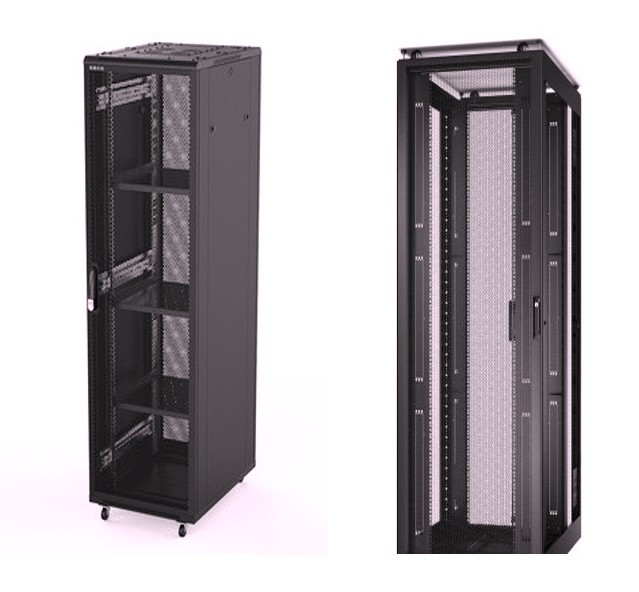
2. Standardized Cabling and Labelling
Reliability starts with the physical layer.
- Laying the Groundwork: Use high-quality Cat6 data cables and dedicated power cables.
The Golden Rule: Labelling and “dressing” (neatly bundling) cables are non-negotiable. Proper tags allow for rapid tracing and easy component or Cables replacement during maintenance, saving hours of troubleshooting Point of View.
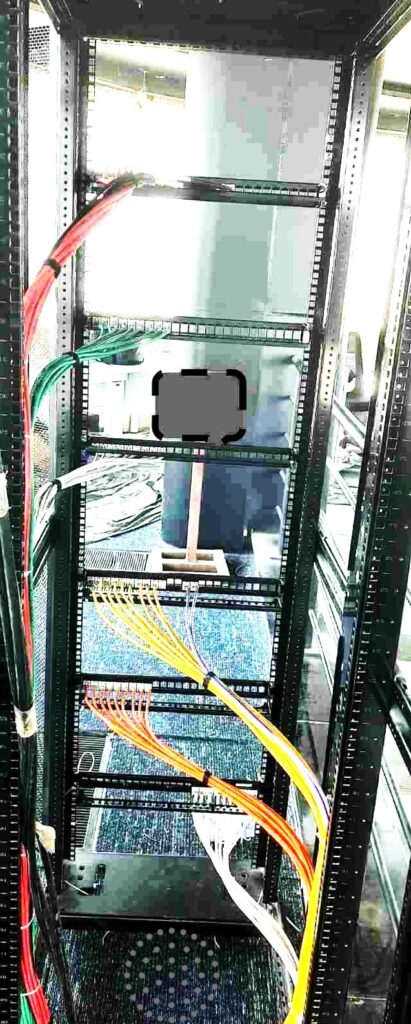
more clarity as shown in above pictures.
3. Hardware Installation and Hierarchy
To prevent overheating and ensure easy access, follow a standard vertical hierarchy. It is best practice to leave/Space at least a 1U gap between devices for airflow to avoid Heating and easy to replace.
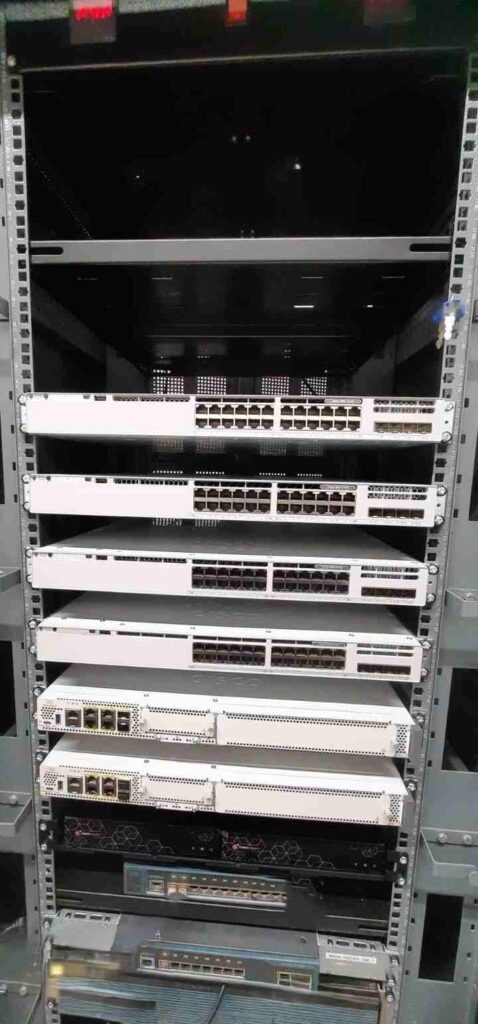
See the pictures above for more information.
The Recommended Example-> Top-to-Bottom H/W installation Sequence:
- LIU (Light Interface Unit): Positioned at the very top if Fiber optic connectivity is required.
- Network Switches: Installed starting from the positions (40U/41U)
- Servers: Mounted in the lower section of the rack due to their weight and depth.
- And last at bottom end: Power device or power extension but PDU must to be mount back both side of rack
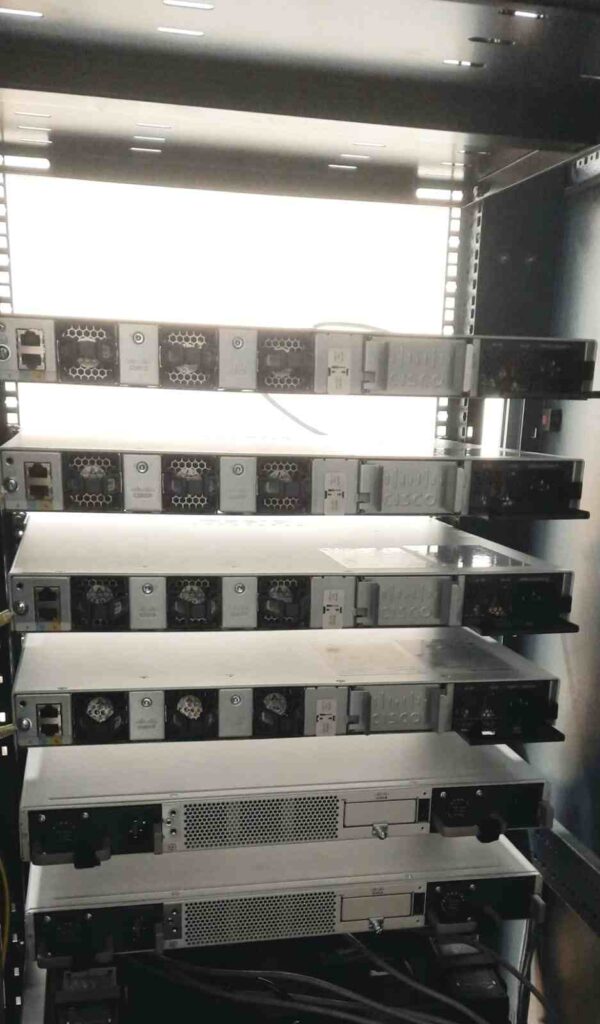
4. Connectivity and Cable Management
Once the hardware is mounted, connect the power and data cables.
Power and cables are connected to all devices using proper routing and wiring so they appear standard.
- Routing: Ensure cables are routed through side managers or D-rings.
- Dressing: Use Velcro ties (rather than tight plastic zip ties) to secure bundles. This not only looks professional but prevents “alien crosstalk” and physical stress on the ports.
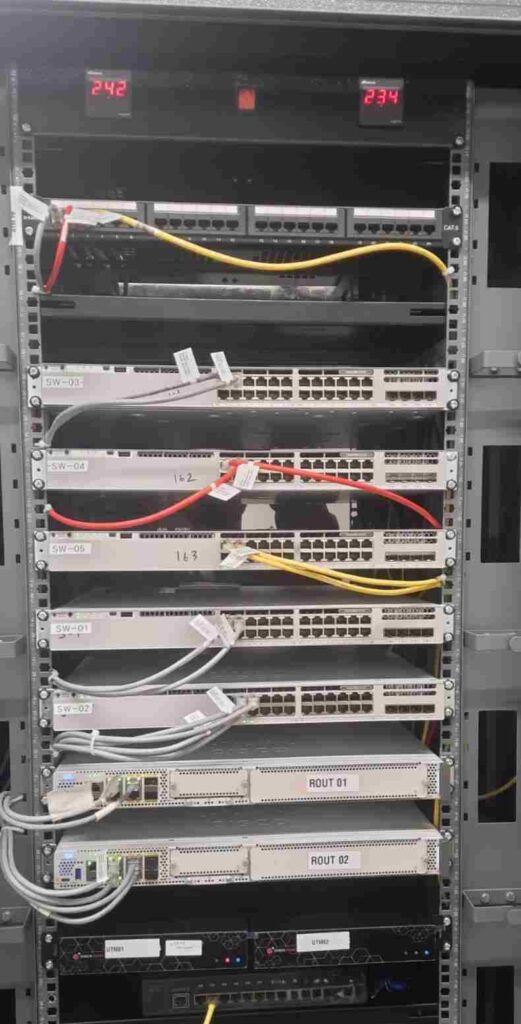
See the pictures above and understand the installation and network connection at the end
5. Final Hardware Verification
Before powering everything on, perform a physical audit:
- Ensure all hardware is tightly bolted and populated correctly.
- Check that all connectors (RJ45 and Power) are seated firmly in their ports.
- Verify that the rack is stable and properly grounded.
6. Power-On and Status Check
Turn on the system and observe the LED indicators.
Finally, check that all devices are properly connected and that the LED backlight and devices are receiving power and are active/operating. The images above show the LED status.
- Active Status: Look for solid or blinking green lights indicating power and link activity.
If there are any issues, troubleshoot and verify them. The cables or hardware may be damaged or incorrectly configured.
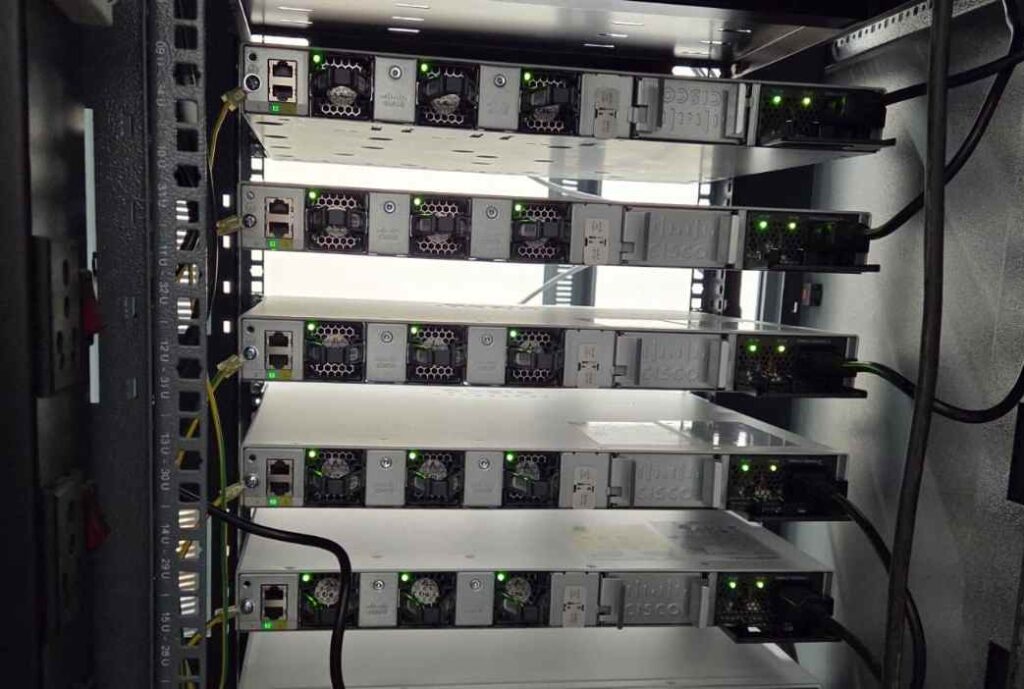
The status LEDs are shown in the pictures above.
- Troubleshooting: If a device fails to show activity, check for faulty cables, loose connections, or configuration mismatches.
FAQ
- Question: Why is a 1U gap between devices so important?
- Answer: It prevents heat buildup by allowing air to circulate between high-performance hardware, extending the life of your equipment and simplifying maintenance.
- Question: Can I use Cat5e instead of Cat6?
- Answer: Cat5e works, but Cat6 is the modern standard for businesses. It supports higher data transfer speeds and is better at reducing “crosstalk” (interference) in crowded racks and over long distances, but Class A limits it to 100m.