
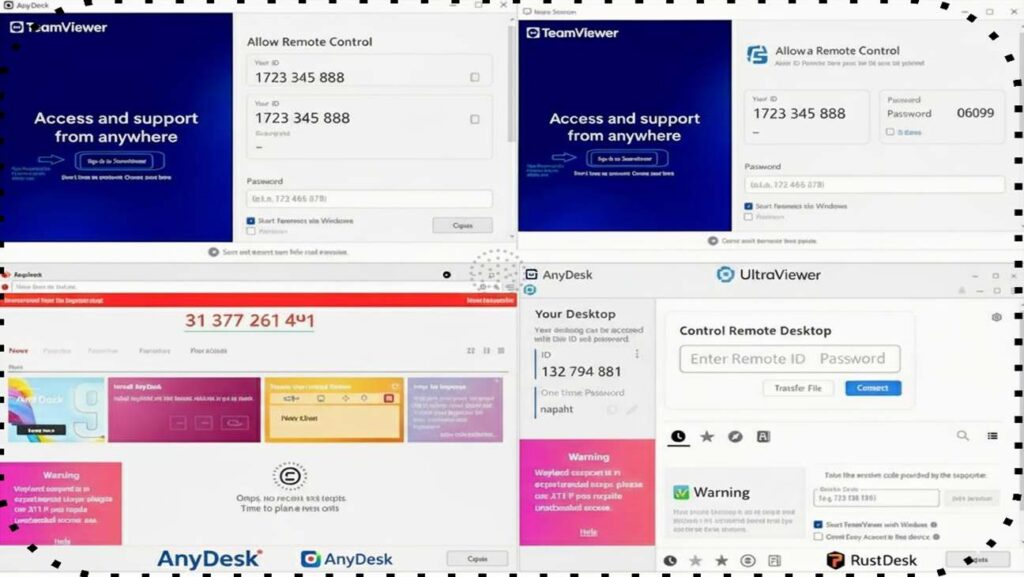
Remote Access: Setup and Tools & How to Connect Computer
????️Provide IT and other technical support by controlling computers worldwide for remote work, and deliver technical visual demonstrations using support/solutions ???? such as AnyDesk, TeamViewer, UltraViewer, RustDesk, Parsec, and Splashtop. Ensure secure remote access from anywhere, anytime with remote desktop protocols and troubleshoot connection issues when connecting remotely ????
1. Visual Connection Concept
Diagram A: The Client-Host Relationship
Step 1: How to Provide Remote Access (Host Setup)
To let someone access your computer, you must set it up as a Host.
General Steps for Most Third-Party Tools
- Download & Install: Install the remote desktop software on the computer you want to control.
- Unattended Access (Optional): Set a fixed password or link to an account for 24/7 access.
- Get ID and Password: The software generates a unique
IDandPassword.
Chrome Remote Desktop Method
Visit remotedesktop.google.com > Access my computer > Install Extension > Set 6-digit PIN.
Windows Remote Desktop (Built-in)
Settings > System > Remote Desktop > Enable. Note the PC Name. (Requires Windows Pro/Enterprise).
2. Security Handshake Diagram
Diagram B: ID & Password Validation Flow
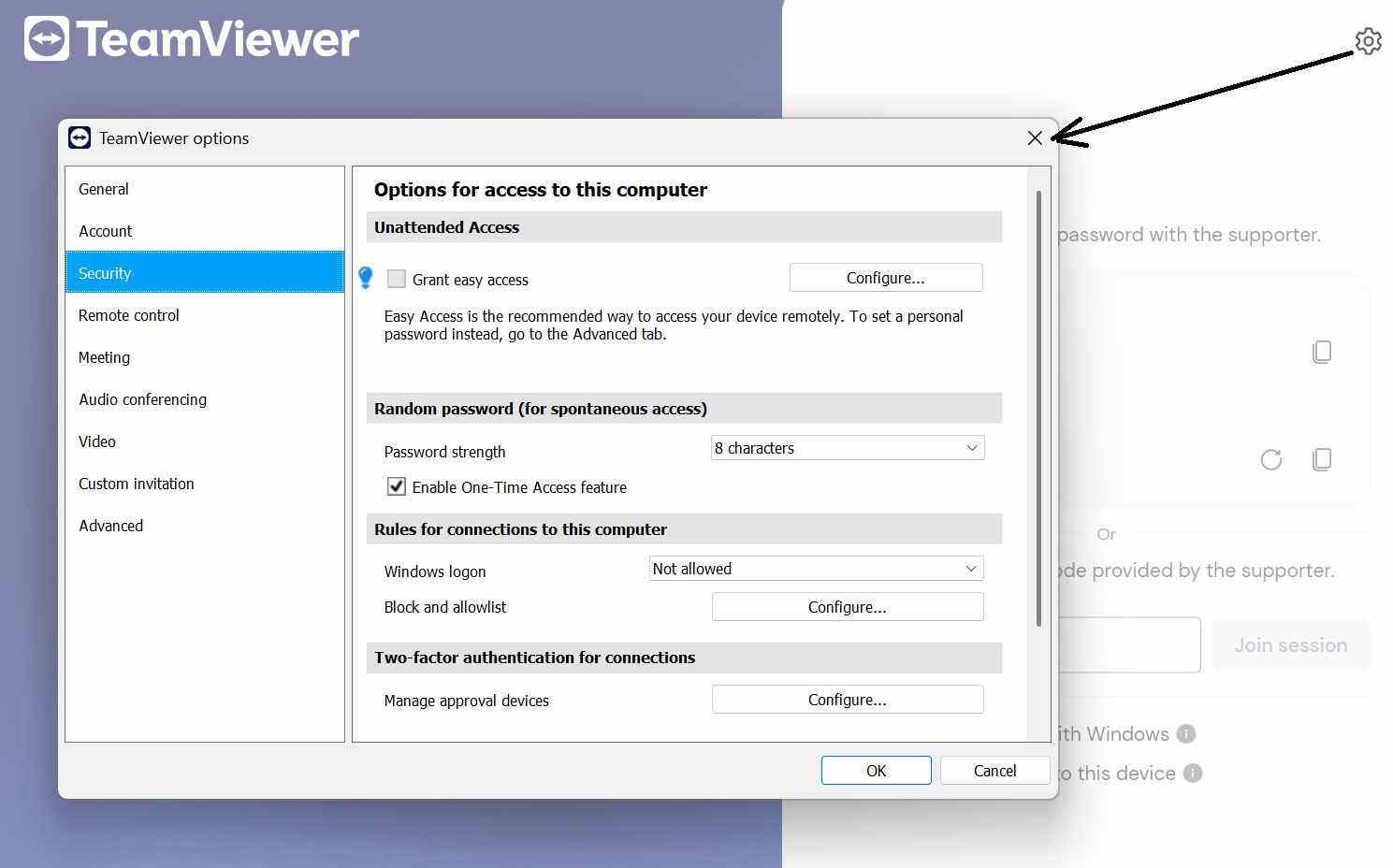
⚠️ Critical Security Best Practices
- Never share your ID/Password with strangers claiming to be “Technical Support” or “Banks”.
- Two-Factor Authentication (2FA): Always enable 2FA on tools like TeamViewer or AnyDesk accounts.
- Whitelist IPs: If possible, restrict access so only specific IP addresses can connect.
- Close when Finished: Always exit the remote software completely after the session ends.
- Randomize Passwords: Ensure your tool is set to generate a *new* password for every session.
- Keep Software Updated: Old versions have security holes that hackers can exploit.
Step 2: How to Connect (Client Setup)
- Open the corresponding software on your controller device.
- Enter the Host’s Unique ID.
- Input the Password or PIN when prompted.
Popular Remote Access Tools
TeamViewer
The industry standard for quick support.
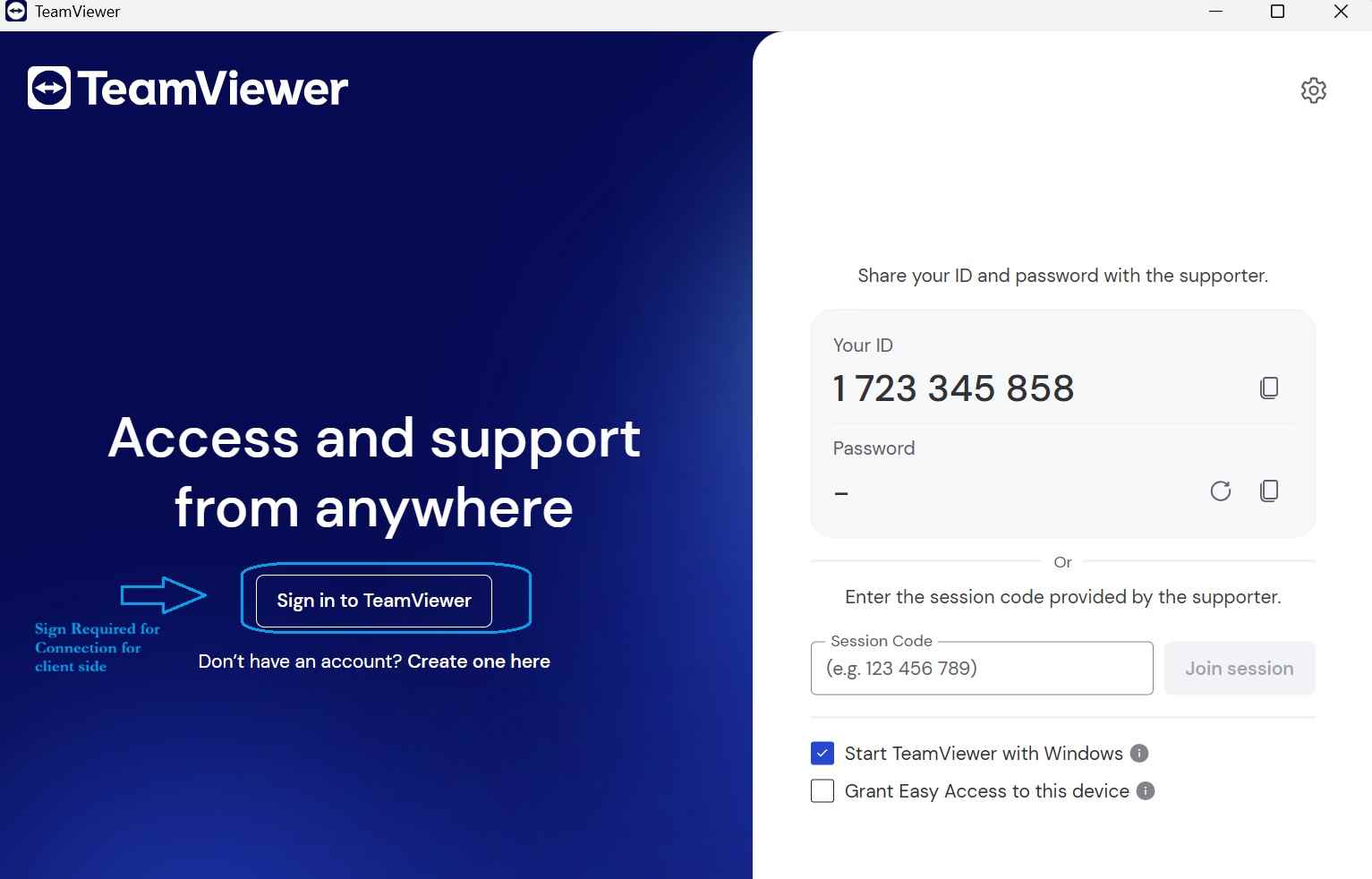
- Host: Open app and share “Your ID” and “Password”.
- Client: Enter ID in “Control Remote Computer” and click Connect.
- Enter Password when prompted.
AnyDesk
High speed, low latency, very lightweight.
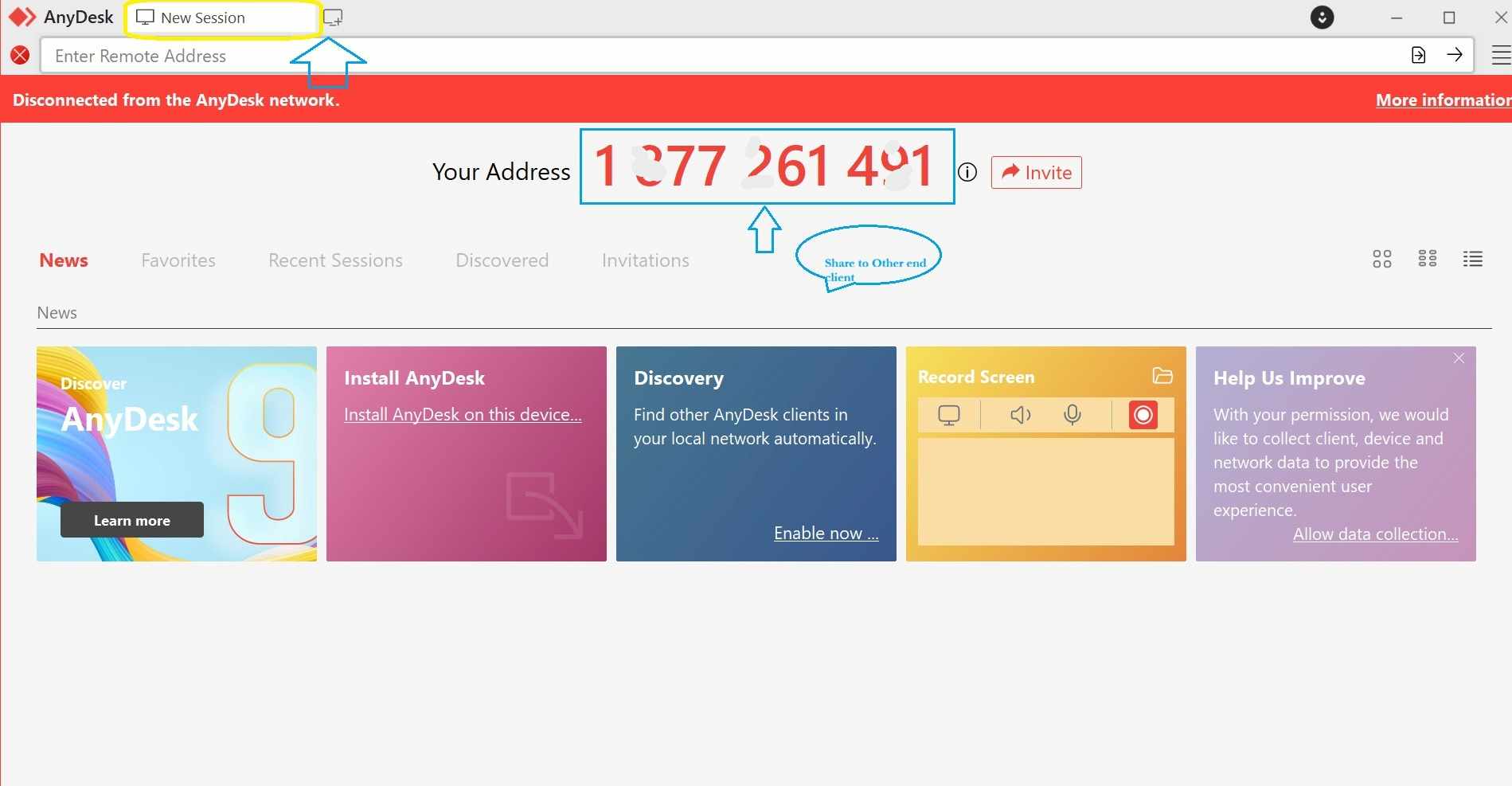
- Host: Provide the 9-digit “This Desk” number.
- Client: Enter number in “Remote Desk” and click Connect.
- Host: Click “Accept” on the security popup.
UltraViewer
Excellent free alternative with built-in chat.
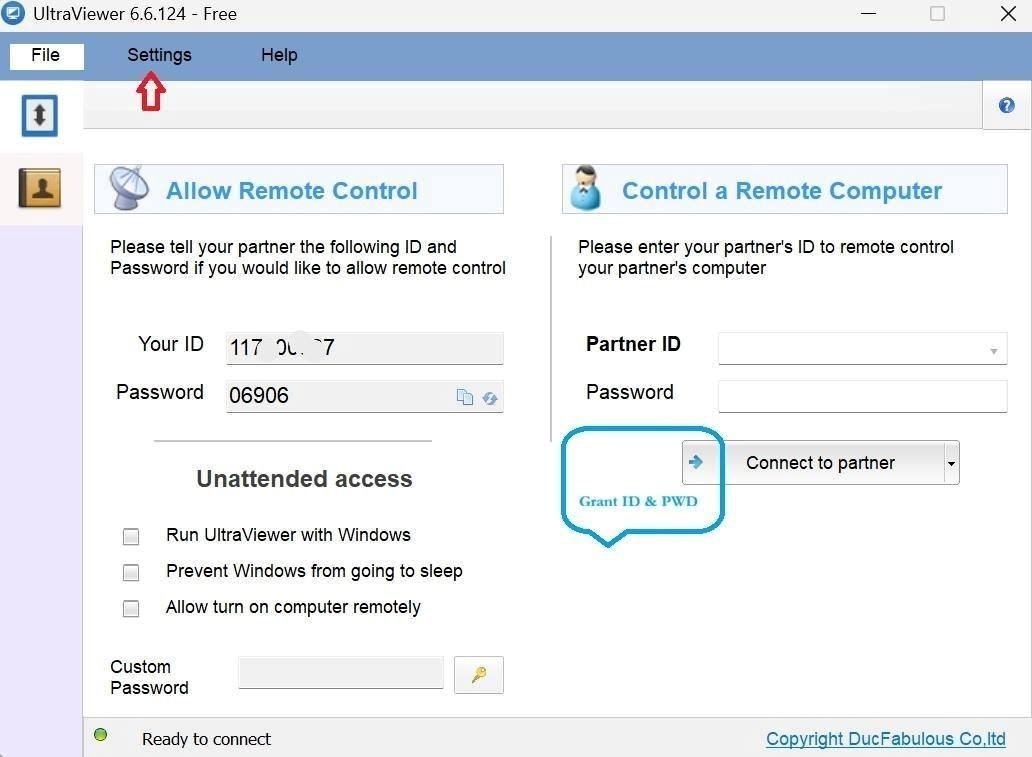
- Host: Share the auto-generated ID and Password.
- Client: Enter ID and Password into the “Partner” fields.
- Click “Connect to partner” to start immediately.
RustDesk (Open Source)
Privacy-focused with self-hosting options.
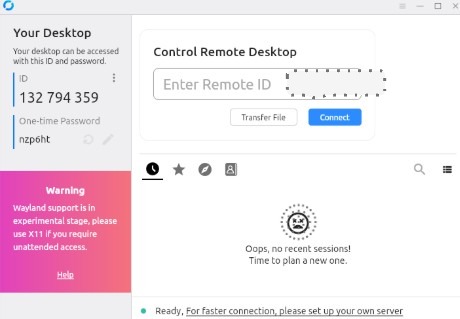
- Host: Provide ID and one-time password from the sidebar.
- Client: Enter ID on the right and click Connect.
- Optionally configure a private relay server in settings.
Parsec (Gaming)
Setup: Account > Host Enabled > Client Login > Connect.
Splashtop (Business)
Setup: Streamer on Host > Business App on Client > Instant Access.
Common Issues & Troubleshooting
1. Connection Refused / “Offline”
Ensure the Host PC is not in ‘Sleep Mode’. Check that the software is running in the system inside.
2. Lag / Slow Performance
Lower the resolution in the software settings. Switch from “Best Quality” to “Best Speed”. Close high-bandwidth apps like Netflix or YouTube.
3. Firewall Blocking Access
Add an “Exclusion” for your remote software in *Windows Defender* or your antivirus firewall settings.
???? Still Can’t Connect? Follow these Rescue Steps
On the HOST (Remote PC)
- Restart the Software: Fully exit the app and re-open it to generate a new ID/Password.
- Check Internet: Open a browser and visit any website to confirm the connection is live.
- Check Antivirus: Temporarily disable Antivirus/Firewall to see if it’s the culprit.
- Admin Rights: Right-click the app and select “Run as Administrator”.
On the CLIENT (Your Device)
- Verify the ID: Ensure there are no typos in the ID number or the password.
- Check Version Match: Ensure you aren’t using a version that is much older than the Host’s version.
- Try Different Network: If you are on a corporate WiFi, try using a mobile hotspot (company firewalls often block remote tools).
???? Advanced Tips
- File Transfer: Most tools have a “File Box” or “File Transfer” mode. Use this instead of emailing large files to yourself.
- Clipboards: Enable “Sync Clipboard” in settings to copy text on one PC and paste it on the other.
- Black Screen: If you value privacy, enable the “Show Black Screen on Host” feature so people nearby can’t see what you are doing.
- Keyboard Shortcuts: Learn the “Send Ctrl+Alt+Del” command in your software’s menu to unlock remote sessions.
- Mobile Control: Most of these tools have Android/iOS apps. You can control your home PC from your phone while on the bus!
- WOL (Wake-on-LAN): Advanced users can set up WOL to “turn on” a computer remotely even if it is completely shut down.
Quick Comparison Table
| Tool | Best For | Ease of Use | Free Version? |
|---|---|---|---|
| AnyDesk | Speed | High | Yes |
| TeamViewer | Support | High | Yes |
| UltraViewer | IT Help | Medium | Yes |
| Parsec | Client Support | Medium | Yes |
| Splashtop | Enterprise | Medium | Trial Only |
3. Advanced Setup & Maintenance Steps
Set a Permanent Password (Unattended Access)
To access your own computer when you aren’t there to click “Accept”:
- Go to Settings > Security in AnyDesk or TeamViewer.
- Look for “Enable Unattended Access” or “Set Password for Remote Access”.
- Create a strong, complex password. Now you can connect using your ID + this fixed password anytime.
Privacy Mode (Hiding Remote Screen)
If you are working on sensitive data in a public office, you can “Blank” the host screen:
- While connected, look at the top menu bar of your remote tool.
- Select Actions > Enable Privacy Mode or Screen > Blank Screen.
- The monitor at the host location will turn black, but you will still see everything on your client device.
Session Recording for Proof
For IT professionals or users working with strangers:
- Click the Record button in the toolbar (usually looks like a red circle).
- This saves a video of the entire session to your local computer. This is vital if you need to review what was changed or if a security incident occurs.