
Computer Basics to Advanced
A complete, self-paced digital skills course — from what a computer is, to Windows, Microsoft Office, the internet, cybersecurity, cloud storage, and AI tools. Built for absolute beginners, students, and anyone starting their digital journey. Works fully offline, on mobile or desktop.
Intro to Computer Systems
Every computer, from a smartphone to a supercomputer, follows the same basic cycle: it takes data in, processes it, gives results out, and stores information for later. This module builds that foundation.
📖 Definition & History of Computers
- A computer is an electronic device that accepts data (input), processes it using instructions, and produces meaningful results (output).
- Evolution: Mechanical calculators → Vacuum tube mainframes (1940s) → Transistors (1950s) → Integrated Circuits/Microprocessors (1970s) → Personal Computers (1980s) → Laptops, Smartphones & Cloud (2000s–today).
- Generations of computers are classified by the core technology used: 1st (vacuum tubes), 2nd (transistors), 3rd (ICs), 4th (microprocessors), 5th (AI-driven systems).
🔌 Input, Output & Storage Devices
- Input devices: Keyboard, Mouse, Scanner, Webcam, Microphone, Touchscreen
- Output devices: Monitor, Printer, Speakers, Projector
- Storage devices: Hard Disk Drive (HDD), Solid State Drive (SSD), USB Pen Drive, Memory Card, DVD
- Storage is measured in: KB → MB → GB → TB
⏹️ Internal Components: CPU, RAM, ROM, Hard Drive
🪫 Setting Up: Cables, Ports & Power Supply
Windows-OS 10/11
Windows is the operating system — the software that manages hardware and lets you run every other program. Mastering its interface is the first real digital skill.
🖥️ Desktop, Taskbar & Start Menu
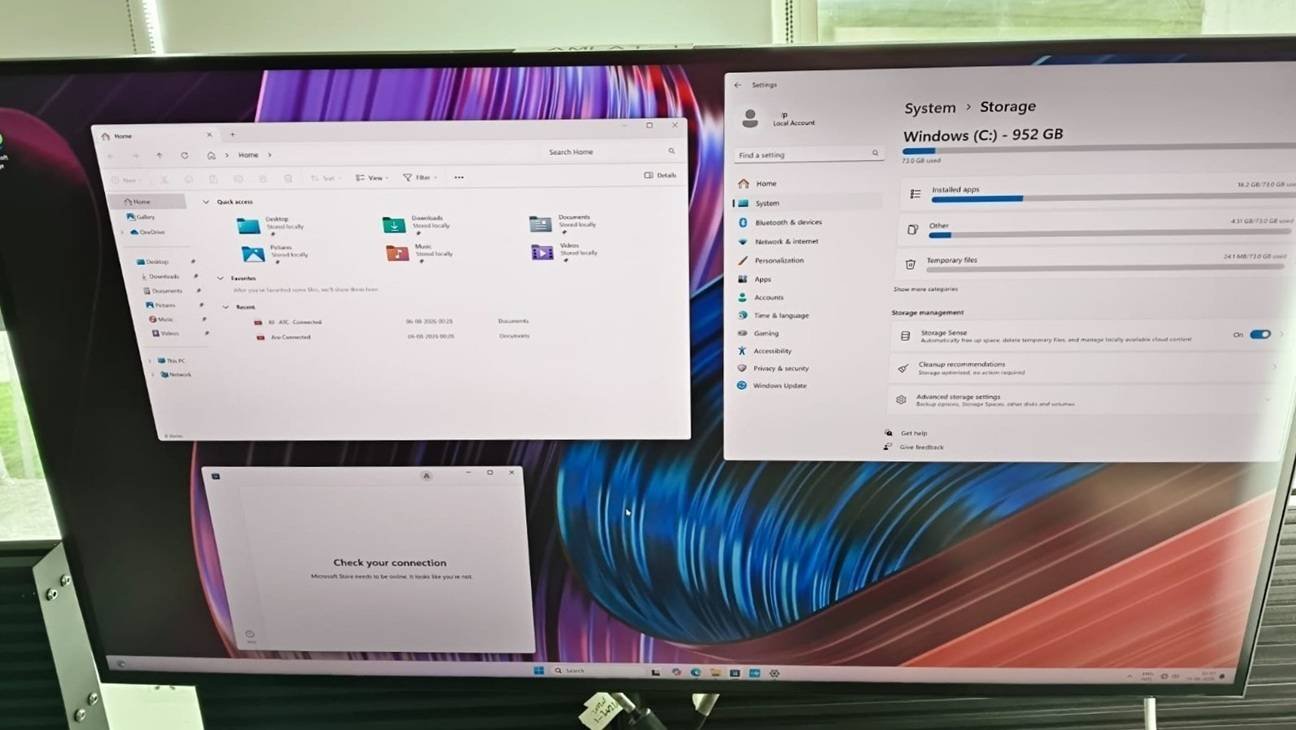
- Desktop = the main screen holding icons, shortcuts, and the wallpaper.
- Taskbar = bottom strip showing Start button, pinned apps, open windows, system tray (clock, Wi-Fi, volume).
- Start Menu = launch pad for all installed apps, settings, and power options (Sleep/Restart/Shutdown).
- Right-click taskbar/desktop for quick context-menu options.
📁 File Management: Create, Copy, Move, Delete
- Use File Explorer (Win + E) to browse drives, folders, and files.
- Rename with F2; select multiple items with Ctrl+Click or Shift+Click.
- Deleted files go to the Recycle Bin first — they can be restored until it’s emptied.
💱 Personalizing: Background, Themes & Resolution
- Right-click Desktop → Personalize to change background, colors, lock screen, themes.
- Settings → System → Display to change resolution, scaling, and night light.
- Settings → Accessibility for text size, contrast, and narrator options.
- Multiple desktops (Task View) help organize different work contexts.
⚙️ Task Manager & Control Panel Basics
Typing, Mouse & Keyboard Skills
Speed and accuracy on a keyboard, and confident mouse control, are the two physical skills that make every other computer task faster.
⌨️ Proper Hand finger Positioning (Typing)
⚡ Important Shortcuts
🖱️ Mouse to Operate
🔤 On-Screen Keyboard & Special Characters
- Open via Settings → Accessibility → Keyboard, useful on touchscreens or if a physical key fails.
- Special characters (₹, ©, °, é) via Character Map app or Alt + numeric code (e.g. Alt+0169 = ©).
- Emoji panel: press Win + . (period) anywhere text can be typed.
Essential System Tools to Execute
Windows ships with small built-in tools that cover most everyday needs — no extra installation required.
- Notepad — plain text editor for quick notes, code snippets, or config files.
- WordPad — simple word processor with basic formatting (bold, font size, alignment).
- Paint 3D — draw, crop, resize, add text/shapes to images; add basic 3D objects.
- Calculator — standard, scientific, and unit-converter/currency modes.
- Calendar — schedule events, set reminders, sync with email accounts.
- Sticky Notes — quick on-screen reminders that stay on the desktop.
🔵 Installing -Uninstalling & Runs SW Safely
Microsoft Word
Word is the standard tool for creating letters, resumes, reports, and any formatted document.
- Creating & Saving: File → New for a blank doc; File → Save As to choose location, name, and format (.docx / .pdf).
- Formatting Text: select text, then use Font, Size, Bold/Italic/Underline, and Font Color from the Home tab.
- Page Layout: Layout tab → Margins, Orientation (Portrait/Landscape), and Columns for newsletter-style text.
- Inserting Objects: Insert tab → Table, Pictures, Shapes, Icons, Header/Footer, Page Numbers.
Microsoft Excel Basics+AI
Excel organizes data into a grid and lets you calculate, sort, and visualize it — essential for budgets, records, and analysis.
- Click a cell and type to enter data; press Enter or Tab to move on.
- Formulas always start with =, e.g.
=SUM(A1:A5),=AVERAGE(B1:B5).
- Sort & Filter: Data tab → Sort (A-Z/Z-A) or Filter to show only matching rows.
- Charts: select data → Insert tab → Chart → pick Bar, Line, or Pie.
Microsoft PowerPoint
PowerPoint turns ideas into visual slide presentations for classrooms, meetings, and pitches.
- Creating Slides: Home → New Slide; Design tab → pick a Theme for consistent colors/fonts.
- Animations & Transitions: Animations tab (effects on objects) vs. Transitions tab (effects between slides).
- Media: Insert tab → Audio/Video to embed a music track or video clip directly on a slide.
- Presenting: Slide Show tab → From Beginning (F5); use Presenter View to see notes while the audience sees only the slide.
Connecting Devices & Networks
A computer becomes far more useful once it’s connected to printers, speakers, Wi-Fi, and other smart devices.
🖨️ Adding a Printer
- Speakers/Headphones: Plug into the 3.5mm jack, USB, or pair via Bluetooth (Settings → Bluetooth → Add device).
- Other peripherals: Webcams, external drives, and keyboards mostly work “plug and play” via USB.
- Wi-Fi Router: Click the Wi-Fi icon in the taskbar → select network name (SSID) → enter password.
- Smart devices (bulbs, plugs, speakers) connect via their own app, then join the same home Wi-Fi network.
Installing Apps, Tools & Bootable Pen drive
Beyond built-in tools, you’ll often need to install new apps or prepare removable media for playback or system installation.
- Open Microsoft Store → search app name → click Get/Install → sign in with a Microsoft account if asked.
- Apps auto-update; manage installed apps from Settings → Apps.
- DVD/CD playback: insert disc → use Windows Media Player or a free player app if no built-in DVD codec exists.
- Uploading files: connect a pen drive → open in File Explorer → drag files in/out, then “Eject” safely before removing.
💽 Creating a Bootable USB Drive
Browsers & Smart Searching
The browser is your gateway to the internet. Knowing its anatomy and search tricks saves huge amounts of time.
- Popular browsers: Chrome, Edge, Firefox — all free, similar layout.
- Search tips: use quotes for exact phrases, minus (-) to exclude a word, site: to search one website only.
- Bookmarks: click the ⭐ in the address bar to save a page; organize into folders.
- History: Ctrl+H shows recently visited sites; can be cleared for privacy.
Email & Online Communication
Email remains the standard for formal communication — job applications, official documents, and business correspondence.
- Creating an account: Gmail (gmail.com) or Outlook (outlook.com) — sign up with name, birthdate, and a strong password.
- Composing: click Compose/New, fill To, Subject, and message body; attach files with the 📎 icon.
- CC (Carbon Copy) = visible extra recipients; BCC (Blind CC) = hidden recipients.
- Spam: unsolicited/junk mail — never click links or download attachments from unknown senders.
🎥 Video Conferencing
- Zoom / Google Meet / MS Teams — join via a meeting link or code, no account always required for guests.
- Basics: mute/unmute mic, turn camera on/off, share screen, use chat, “raise hand” to speak.
Cybersecurity & System Maintenance
Staying safe online is now as essential as knowing how to type — a few habits prevent most common problems.
- Strong passwords: 12+ characters, mix of upper/lower case, numbers, symbols; never reuse the same password everywhere.
- Enable Two-Factor Authentication (2FA) wherever available for an extra login step.
- Avoiding viruses/malware: don’t open unknown attachments, avoid pirated software, keep OS updated.
- Antivirus: Windows Defender (built-in) or third-party tools; run regular scans and keep definitions updated.
🧹 Clearing Browser Cache & Cookies
Cloud Storage & AI Tools
The cloud lets you access files from anywhere, and AI tools now assist with writing, research, and everyday tasks.
- Google Drive: 15GB free, integrates with Docs/Sheets/Slides; share files with view/edit links.
- OneDrive: built into Windows, auto-backs up Desktop/Documents/Pictures folders.
- AI Tools (ChatGPT, Gemini, Claude) help draft emails, summarize documents, explain concepts, and generate ideas.
- Always fact-check important AI-generated information before relying on it.
Troubleshooting, Digital Etiquette & Career Prep
The final stretch: fixing common problems yourself, behaving professionally online, and turning these skills into real-world results.
🛠️ Basic Troubleshooting
- “Turn it off and on again” genuinely fixes a large share of everyday computer issues.
- Slow PC? Check Task Manager for high CPU/RAM apps, and free up disk space (Disk Cleanup tool).
- No internet? Restart the router, check the Wi-Fi password, or try airplane mode on/off.
🤝 Digital Etiquette formalities
- Use clear subject lines and a polite greeting/closing in professional emails.
- Avoid ALL CAPS (reads as shouting) and excessive exclamation marks.
- Mute your mic when not speaking on video calls; keep video backgrounds tidy.
- Think before sharing/forwarding — verify information before spreading it.